Meeting Highlights From Any Recording, No Bot Required
Upload a meeting recording and EchoWave pulls the decisions, demos, and key moments into short captioned clips. No bot joins the call and no calendar access is needed.


Meeting Highlights From Any Recording, No Bot Required Features
EchoWave's clip tools are used by product managers, customer success teams, and internal comms teams worldwide




Recaps, not rewatches
Find the decision without rewatching the meeting
Meeting highlights save your team from rewatching a full recording to find the one decision that mattered. Upload the file after the call ends, EchoWave never joins a live meeting and never asks for calendar access, and the meeting preset tunes highlight detection toward decisions, demos, and the moments where the discussion turned. Screen share is treated as a real signal: shared screens get a presenter-plus-slides layout and the camera never pans across a screen change. Each highlight comes out captioned and titled, ready to drop into a recap message. If you also need the words, pair it with meeting transcription or convert the full session with video to text, then polish clips in the text-based editor.
-
0-100
Every highlight is scored with Hook, Clarity, Emotion, Value, and Trend sub-scores
-
7 layouts
Presenter + slides, split, grid, and picture in picture built for meeting-shaped footage
-
1-30 clips
Pull a single decision or a full recap batch from one meeting recording
-
~99 languages
Transcription auto-detects the language and clip titles arrive in the video's language
What you get
Built for recordings full of screens and speakers
Upload the file after the call, get back the parts worth watching.
-
No Bot, No Calendar Access
EchoWave works from an uploaded recording, a direct media link, library media, or an existing project. Nothing joins the live call and nothing touches your calendar, so there is no permission pushback from attendees.
-
Meeting Preset Finds Decisions
Pick the meeting genre preset and highlight detection leans toward decisions, commitments, and demo walkthroughs in the word-timed transcript, backed by audio energy, speaker turns, and scene cuts pulled from the recording itself.
-
Presenter Plus Slides Layout
Screen-share heavy meetings clip cleanly: the shared screen sits on top with the speaker below, so a demo or dashboard walkthrough stays legible instead of getting cropped out behind a headshot.
-
Screen-Change Aware Camera
Scene cuts such as a screen change count as a real signal. The smart camera never pans across one, so a clip never smears from a face into a slide mid move.
-
Search the Transcript by Topic
Type a prompt like find moments about the launch date, or boost keywords such as a project name, and EchoWave surfaces highlight moments on exactly that from anywhere in the recording.
-
Captions for Muted Viewing
Every clip ships with word-timed captions in any of 60+ presets, so a teammate skimming a busy channel on mute still catches the decision without reaching for headphones.
-
Clip One Agenda Item
Limit the analysis to a time range, such as the last 15 minutes of an all-hands where the questions came in, and every clip comes from that stretch instead of the whole recording.
-
Editable Clips, Not Timestamps
Each highlight becomes a full EchoWave project, not a raw timestamp. Trim the intro, swap the caption style, nudge a camera keyframe, then export at 1080p on Creator or 4K on Pro.
How it works
How to make meeting highlights
From a raw meeting recording to shareable recap clips in four steps.
-
Upload the Recording
Drop the meeting file into EchoWave, or point it at a direct media link, your library, or an existing project. Any exported recording file works, no account integration required.
-
Pick the Meeting Preset
Choose the meeting genre, set clip length (15-30 s for quick recaps, 60-90 s for a full demo), pick an aspect ratio, and optionally type a prompt like find the pricing decision.
-
Review the Ranked Grid
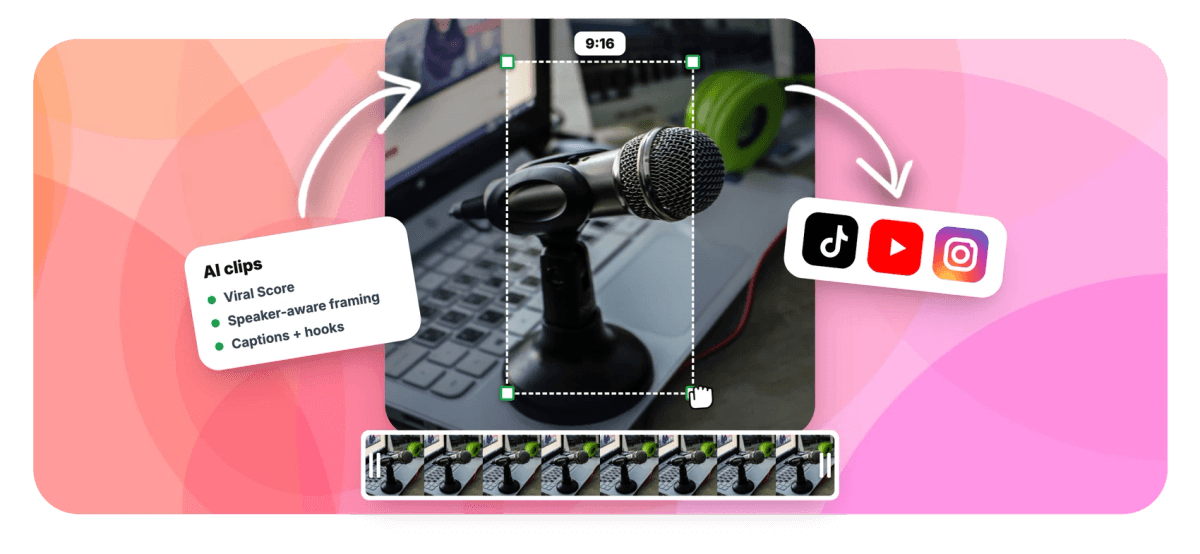
Scan clips ranked by Viral Score with plain-English reasons, timestamps, and transcript excerpts. Check the framing, then add a custom clip from any range on the source strip if a moment was missed.
-
Export and Send the Recap
Bulk select the keepers, create projects and exports in one pass, and paste the finished clips into your recap message. Free exports carry a small watermark and a 720p cap.
Who uses it
Teams that send clips instead of recordings
-
Product managers
Clip the decision and the demo from a product review so stakeholders who missed it catch up in two minutes.
-
Customer success
Pull client objections and feature requests from call recordings for internal review without forwarding the full hour.
-
Internal comms
Turn an all-hands recording into a short recap of the biggest announcement for the company channel.
-
Sales managers
Review the pitch and the pricing moment across recorded calls without scrubbing each one end to end.
-
Ops leads
Capture the exact moment a decision was agreed on video, so nobody relitigates it the following week.
-
Async and remote teams
Replace watch the recording with three captioned highlight moments teammates in other time zones actually watch.
The recap your team will actually watch
Upload your last meeting recording and see which moments rank. You get 30 minutes of analysis free every month, no card required.
How creators use EchoWave in real projects

About the EchoWave team
EchoWave is a browser-based video and audio editor built by Lemon Vault LLC since 2018. The people who build the editor write these guides and test every step in the production app before publishing.
Meeting highlights FAQ
How do I get meeting highlights from a recording?
Upload the meeting recording to EchoWave, or point it at a direct media link, your library, or an existing project. Pick the meeting genre preset, choose a clip length and how many clips you want, and run the analysis. EchoWave transcribes the recording, finds highlight moments such as decisions, demos, and lively back-and-forth, and returns a ranked grid of captioned, titled clips. Review them, trim anything in the full editor, then export and paste the clips into your recap message.
Can AI find the key decisions in a meeting recording?
Yes. A language model reads the word-timed transcript for clear decisions, commitments, and explanations, while signals such as audio energy, silences, speaker turns, and scene cuts flag where the conversation actually changed. The meeting preset weights detection toward decision and demo moments, and each candidate gets a 0-100 score with Clarity and Value sub-scores plus plain-English reasons. You can also steer it directly: type a prompt like find moments about the budget, or boost keywords such as a project name.
How do you clip a screen-share meeting recording?
Screen share is where most clipping tools fall over, because the content that matters is the shared screen, not a face. EchoWave detects screen shares and offers a Presenter + slides layout with the shared screen on top and the speaker below, plus Picture in picture when the screen should dominate. Scene cuts such as screen changes are treated as hard boundaries, so the camera never pans across one, and a demo or dashboard stays legible in the finished clip.
Do meeting highlight tools need calendar access or a bot in the call?
Many do, and mandatory calendar permissions are a common source of attendee pushback. EchoWave takes a different route: it never joins a live meeting, never connects to a calendar, and never touches your conferencing account. It works purely from an uploaded recording, a direct media link, library media, or an existing project. That also means nothing can fail during the live call, since you clip the file you already have once the meeting has ended.
How long should a meeting highlight clip be?
It depends on the moment. A single decision or announcement usually lands in 30-60 seconds, while a demo walkthrough often needs 60-90 seconds to make sense. EchoWave gives you presets for Short (15-30 s), Medium (30-60 s), and Long (60-90 s), a custom range, or Auto, which lets the moment set its own boundaries. You can also add a custom clip from any range on the source strip if you want the full discussion around a decision.
How do you share meeting highlights with people who missed the meeting?
Export the clips and drop the files into whatever your team already reads: a chat channel, an email thread, a project doc. Each highlight comes with an AI title, a hook line, word-timed captions, and a transcript excerpt, so a teammate scrolling on mute still gets the point. Bulk select lets you create many projects and exports at once, so a 50-minute recording turns into a three-clip recap in a single pass instead of one export at a time.
Is there a free AI tool for meeting highlights?
Yes. EchoWave's free plan analyses up to 30 minutes of recording per month, enough to test a typical weekly meeting, and free exports carry a small watermark with a 720p cap. Paid plans raise both ends: Creator includes 180 analysis minutes with 1080p exports, Pro includes 600 minutes with 4K exports, and Ultra covers 3,000 minutes per workspace per month. Every plan uses the same detection engine and the same layouts, so quality does not change with price.
Who can see the clips made from a meeting recording?
On team plans, clip jobs are scoped to your workspace and visible only to its members, and analysis minutes come from that workspace's pool. Nothing is posted anywhere for you: EchoWave has no social publishing, so a clip only leaves the workspace when someone exports and shares the file. Speaker detection is on-screen only, matching lip movement to the voice to frame whoever is talking, and it does not build voice prints. No bot joins your calls either, because EchoWave only works from recordings you bring to it.
Skip the rewatch Send the highlight
Upload a meeting recording and get the decisions and demos back as short captioned clips.
Get Started →