Turn a Zoom Recording Into Clips That Frame Themselves
Upload the file you downloaded from Zoom, Google Meet or Teams. EchoWave finds the highlights, frames gallery tiles as a grid or one speaker, and keeps slides readable.


Turn a Zoom Recording Into Clips That Frame Themselves Features
EchoWave's clip tools are used by meeting hosts, sales teams and trainers worldwide





Meeting recording clips
Meeting recordings have their own shapes. The framing should too
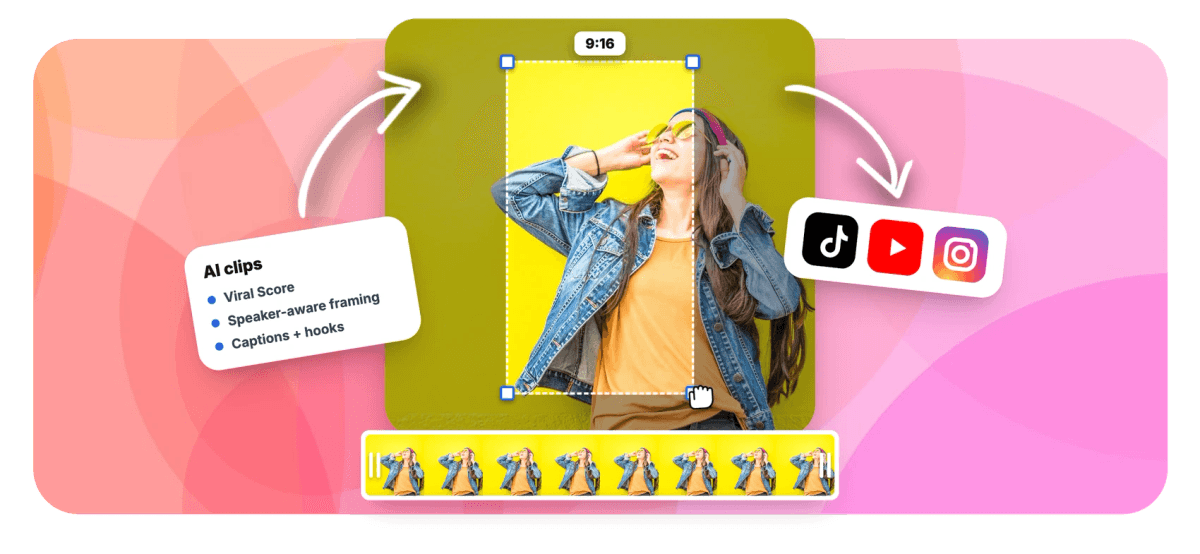
Turning a Zoom recording to clips is a framing problem as much as a finding problem. The file you export from Zoom, Google Meet or Microsoft Teams is a gallery of tiles, a speaker view, or one big shared screen, and none of those crop cleanly into vertical video. EchoWave reads the uploaded recording, scores the conversation with a meeting-tuned rubric, then frames each moment to match: Grid keeps three or four tiles visible, Follow speaker tracks whoever has the floor, Presenter + slides stacks the screen share above the person talking. It is the same engine behind our meeting highlights and webinar to clips tools, with word-timed captions burned into every clip.
-
7 layouts
Grid, Split, Follow speaker, Presenter + slides, picture in picture and more
-
~99 languages
Transcription auto-detects the language of the call before analysis begins
-
1-30 clips
Set how many clips a run produces, or let the ranking decide automatically
-
30 min free
Analyse 30 minutes of recordings every month on the free plan, no card required
What you get
Built for the shapes call recordings actually come in
Gallery view, speaker view, screen share: each gets treated differently instead of being center-cropped and hoped for.
-
The File Is Enough
No Zoom account connection, no bot joining the call, no calendar access. Hand EchoWave the recording you already have: an upload, a direct media link, library media, or an existing project.
-
Grid Layout for Gallery View
A multi-tile gallery recording is the worst input for a vertical crop. The Grid layout keeps three or four participant tiles on screen at once, so a group discussion still reads as one.
-
Presenter + Slides for Screen Shares
When the recording contains a shared deck or demo, the Presenter + slides layout puts the screen share on top and the speaker below it, so the slide stays legible in portrait.
-
Follow Speaker for Smaller Calls
For a two or three person call, skip the grid and track whoever is talking. On-screen speaker detection (lip movement matched to the voice) cuts between people on their turns.
-
A Rubric Tuned for Meetings
The meeting genre preset weights the transcript analysis toward decisions, demos and real back-and-forth, so the ranked clips surface the moments a recap needs, not just the loudest thirty seconds.
-
Viral Score With Plain Reasons
Every clip carries a 0-100 score with Hook, Clarity, Emotion, Value and Trend sub-scores plus written reasons, so choosing which moments to share takes a glance, not a rewatch.
-
See the Call Get Read
While the recording is processed you see frames read with each tile's face tracked, the waveform, screen changes and the transcript, then clips arriving ranked. Leave mid-run and it resumes where it stopped.
-
Captions, Titles and Hashtags Included
Each clip arrives with word-timed captions in any of 60+ presets sized for portrait, an AI title under 60 characters, a hook line, a description and hashtags. See every style in add subtitles.
How it works
How to turn a Zoom recording into clips
From a downloaded MP4 to ranked, framed, captioned clips in four moves.
-
Upload the Recording
Drag in the file from Zoom, Google Meet or Microsoft Teams, or paste a direct media link. Transcription starts immediately and auto-detects the call's language across roughly 99 options.
-
Set the Meeting Preset
Pick the meeting genre, choose 9:16 for shorts or 16:9 for a recap, set clip length and count. Limit analysis to a time range or type a prompt like "find moments about pricing".
-
Review the Ranked Grid
Scan clips ordered by Viral Score, read the reasons, and switch any clip's layout: Grid for the gallery, Follow speaker for a duo, Presenter + slides where a screen share appears.
-
Refine and Export
Open any clip as a full EchoWave project, adjust captions or camera keyframes shot by shot, then bulk export. Free renders carry a small watermark at 720p; Creator exports 1080p, Pro 4K.
Who uses it
One recorded call, many audiences
-
Sales teams
Clip objection handling and pricing moments from client call recordings into internal highlight reels, without a rep scrubbing the hour.
-
Customer success
Pull the demo walkthrough and the decision from a QBR recording so the account team sees exactly what was agreed.
-
Trainers and educators
Turn a recorded Zoom session into short recap and study clips, with the shared slides kept large and readable.
-
Meeting hosts
Send the three decisions from a long call to people who skipped it, framed and captioned, instead of a raw recording link.
-
Remote teams
Clip all-hands announcements from a gallery-view recording into a grid layout, so the exchange between speakers stays visible.
-
Webinar hosts
Reuse a Zoom webinar recording as vertical promo clips, presenter under the deck, ready for the next launch cycle.
The last call is already full of clips
Upload the recording sitting in your downloads folder and get ranked, framed, captioned clips back before the follow-up email is written.
What people are saying about EchoWave

About the EchoWave team
EchoWave is a browser-based video and audio editor built by Lemon Vault LLC since 2018. The people who build the editor write these guides and test every step in the production app before publishing.
Zoom recording to clips FAQ
How do I turn a Zoom recording into clips?
Upload the recording file to EchoWave's clip generator, pick the meeting genre preset, choose an aspect ratio and clip length, and start the run. Transcription auto-detects the language, then the AI ranks highlight moments using the transcript plus audio energy, speaking turns and scene cuts. Each clip comes framed for the recording's layout, with word-timed captions and a title. Open any clip in the editor to adjust it, then export. The whole flow works from the file alone, no Zoom account involved.
Can I clip a Zoom recording without connecting my Zoom account?
Yes, and that is the point of this tool. EchoWave never connects to a Zoom, Meet or Teams account, never joins a live call as a bot, and never asks for calendar access. It works from a recording that already exists: upload the file, paste a direct media link, pick it from your library, or start from an existing project. That makes it usable for a call that happened last month, not just ones you planned ahead for.
How do you frame a gallery-view Zoom recording for vertical video?
A gallery recording puts several participant tiles in one frame, so a plain center crop loses most of the people. EchoWave's Grid layout keeps three or four tiles visible in the vertical frame, Split stacks two participants, and Follow speaker tracks whoever is talking using on-screen speaker detection (lip movement matched to the voice). Camera moves use a dead zone, capped pan speed and smoothing, and never pan across a scene cut, so tile switches cut cleanly instead of whip-panning.
Does this work with Google Meet and Microsoft Teams recordings?
Yes. EchoWave reads the recording file itself, so it does not matter which platform produced it. A Google Meet export, a Microsoft Teams recording, or a file from any other call tool goes through the same pipeline as a Zoom recording: transcription, highlight ranking, and layout-aware framing. Gallery grids, speaker view and screen shares are handled the same way regardless of source, and the presenter-plus-slides layout activates whenever a shared screen is detected in the footage.
Can AI find the best moments in a Zoom recording automatically?
Yes. A language model reads the word-timed transcript while signal analysis tracks audio energy, reaction peaks, silences, speaking turns and scene cuts. The meeting preset tunes that rubric toward decisions, demos and genuine discussion. Each candidate clip gets a 0-100 Viral Score with Hook, Clarity, Emotion, Value and Trend sub-scores and plain-English reasons like "back-and-forth". You can also steer it: type a prompt such as "find moments about the roadmap" to search the transcript, or add a custom clip from any range on the source strip.
How long should a Zoom recording clip be?
It depends on where it is going. For shorts feeds, the Short preset at 15-30 seconds suits a single sharp exchange or decision. Medium, 30-60 seconds, fits a demo moment or a complete answer. Long, 60-90 seconds, works for a discussion that needs context, which meeting content often does. EchoWave also accepts a custom length range, and the Auto setting lets the analysis pick a natural boundary for each moment instead of cutting mid-sentence.
Is there a free tool to clip Zoom recordings?
EchoWave's free plan includes 30 minutes of analysis per month, enough for a full half-hour call or the key range of a longer one. Free exports carry a small watermark and are capped at 720p. Paid plans raise both limits: Creator includes 180 monthly minutes with 1080p exports, Pro includes 600 minutes with 4K, and Ultra includes 3,000 minutes for teams. You can also restrict analysis to a time range so a long recording spends fewer minutes.
Who can see clips cut from a client call recording?
On team plans, clip jobs live in your workspace and only its members can see them, with analysis minutes tracked per workspace. EchoWave never joins the call, connects to your Zoom account or posts anything on your behalf, so a clip from a sales or customer success call leaves the workspace only when someone exports the file and shares it. Speaker framing relies on what is on screen, matching lip movement to the voice, not on stored voice prints of your clients.
Clip the call skip the scrubbing
Upload a Zoom, Meet or Teams recording and get framed, captioned highlights back in minutes.
Get Started →