AI Reframe: Vertical Video That Follows the Speaker
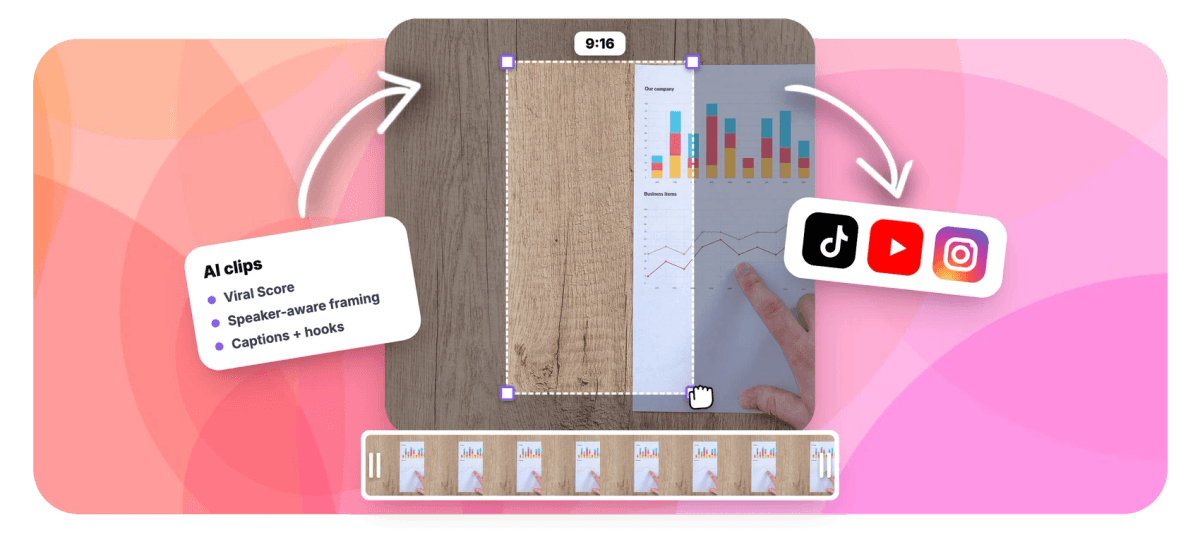
Turn a 16:9 recording into 9:16 with a camera that tracks who is talking, switches layouts for two-ups and slides, and leaves every move editable.


AI Reframe: Vertical Video That Follows the Speaker Features
EchoWave's auto reframe tools are used by podcasters, educators, and video editors worldwide




Speaker-aware reframe
A camera engine, not a crop filter
AI reframe in EchoWave works like a camera operator, not a resize pass. Face tracking finds everyone on screen, and on-screen speaker detection (lip movement matched to the voice) works out whose turn it is before the frame commits to them. Motion is governed by a dead zone, a capped pan speed, and smoothing, and the camera never pans across a scene cut, it cuts with the footage instead. Choose from seven layouts, from Follow speaker to Split, Grid, and Presenter plus slides, then send a widescreen recording straight to vertical video instead of a blunt center crop. Run it through the AI clip generator and every highlight gets reframed in one pass.
-
7 layouts
Follow speaker, Split, Grid, Presenter plus slides, Picture in picture, Fill, Letterbox over blur
-
4 aspect ratios
Reframe to 9:16, 1:1, 4:5, or 16:9 for any placement
-
0 mid-scene pans
A scene change always triggers a clean cut in the frame, never a drag across it
-
30 free minutes
Analyze 30 minutes of source video a month on the free plan, no card required
What you get
Reframing that survives a real conversation
Most auto reframe tools ship one tracking behavior and hope for the best. This one ships seven layouts, tuned motion, and full manual control afterward.
-
Seven Camera Layouts
Follow speaker for one face, Split for two hosts stacked, Grid for three or four, Presenter plus slides for screen shares, plus Picture in picture, Fill, and Letterbox over blur when you want a fixed shot.
-
Lip-Matched Speaker Tracking
On-screen speaker detection matches lip movement to the active voice, so when the second host jumps in, the camera cuts to them on their turn instead of hesitating or whip-panning across the room.
-
Motion Tuned Like an Operator
A dead zone ignores small head movements, pan speed is capped, and smoothing keeps drifts gentle. Adjust steadiness, zoom, and the cut-versus-pan balance until the camera behaves the way you would.
-
Clean Cuts at Scene Changes
The engine detects scene cuts in the source and always cuts the frame with them. Dragging a pan across a hard cut is the tell of cheap auto-crop, and it never happens here.
-
Every Move Is a Keyframe
Nothing is baked into the pixels. Each pan, cut, and zoom lands as an ordinary keyframe in the timeline, so one bad crop is a thirty-second fix, not a reason to re-run the whole pass.
-
Two Hosts, Both in Frame
A single tight crop erases the second person from a conversation. Split stacks both hosts at eye level in a 9:16 frame, and Grid handles panels of three or four without anyone dropping out.
-
Presenter Plus Slides
Screen-share recordings usually get cropped down to a face while the slide, the entire point of the clip, disappears. This layout keeps the share legible on top with the speaker framed below it.
-
Pin the Camera on One Speaker
Focus on lets you lock the frame to a chosen person instead of following whoever is talking, useful for a host-centric cut or when a guest's reactions are the story. Pairs well with auto crop.
How it works
How to AI reframe a video
From a widescreen recording to speaker-aware vertical in four steps, with a hand-editable result at the end.
-
Add Your Recording
Upload a video, pick one from your library, paste a direct media link, or start from an existing project. Podcasts, interviews, webinars, lectures, and stream VODs all work.
-
Pick Layout and Aspect Ratio
Choose 9:16, 1:1, 4:5, or 16:9, then select a layout: Follow speaker, Split, Grid, Presenter plus slides, Picture in picture, Fill, or Letterbox over blur.
-
Tune the Camera
Set steadiness, zoom, and how readily the camera cuts instead of pans. Use Focus on to pin a specific speaker, or leave it to follow the conversation turn by turn.
-
Adjust Keyframes and Export
Open the result in the editor, nudge any shot's crop by dragging its keyframes, then export. Free renders at 720p with a small watermark, Creator hits 1080p, Pro goes to 4K.
Who uses it
Built for footage with more than one thing in it
-
Two-host podcasters
Reframe a 16:9 studio recording with Split so both faces stay framed at eye level for the entire episode.
-
Webinar hosts
Presenter plus slides keeps a 45-minute deck legible in vertical while the speaker sits framed below the share.
-
Interview channels
Follow speaker cuts between guest and host on their turns, using lip movement matched to the voice, not guesswork.
-
Streamers and gamers
Reframe VOD highlights to 9:16 with Picture in picture so gameplay and facecam both survive the crop.
-
Educators
Turn lecture recordings into vertical study clips where the board, the slides, and the teacher all stay visible.
-
Hands-on editors
Use the automatic pass as a first draft, then hand-tune individual crops in the timeline without re-running anything.
Reframe your next recording
Get 30 free analysis minutes a month. Pick a layout, watch the camera follow the conversation, and adjust any shot afterward.
What creators say after trying EchoWave

About the EchoWave team
EchoWave is a browser-based video and audio editor built by Lemon Vault LLC since 2018. The people who build the editor write these guides and test every step in the production app before publishing.
AI reframe FAQ
How do I AI reframe a video?
Upload your recording to EchoWave, or pick it from your library, a direct media link, or an existing project. Choose a target aspect ratio such as 9:16 for Shorts and Reels, then pick a layout: Follow speaker for one face, Split for two hosts, Grid for panels, or Presenter plus slides for screen shares. The engine detects faces, matches lip movement to the active voice, and generates camera moves automatically. Open the result in the editor to fine-tune any shot, then export. The free plan covers 30 minutes of source video a month.
What does auto reframe mean for video?
Auto reframe means software converts a video from one aspect ratio to another, typically 16:9 to vertical 9:16, by moving a crop window intelligently instead of taking a fixed slice down the middle. Basic versions track a single point of interest. EchoWave goes further: it detects every face, works out who is speaking, and chooses framing per layout, so a two-person conversation becomes a stacked split screen rather than a crop that amputates one host. The output is a set of camera keyframes, not a burned-in crop.
Can AI keep the speaker in frame when converting a video to vertical?
Yes. EchoWave's face tracking locates each person, and on-screen speaker detection (lip movement matched to the voice) identifies who is talking at any moment. The camera keeps subjects at eye level and follows them within a dead zone, so small shifts do not jiggle the frame while real movement gets a smooth, speed-capped pan. If you would rather ignore turn-taking, the Focus on control pins the camera to one chosen speaker for the whole clip.
Does auto reframe work when there are two people talking?
This is exactly where single-crop tools fail: they either whip between faces or lock onto one person and cut the other out entirely. EchoWave offers layouts built for conversations. Split stacks two hosts in a vertical two-up so both stay visible throughout, Grid handles three or four people, and Follow speaker cuts between participants on their speaking turns using lip movement matched to the voice. You pick the behavior per clip instead of accepting one automatic guess.
Can auto reframe handle a screen share with slides?
Yes, with a dedicated layout. Generic reframing crops a webinar down to the presenter's face, which destroys the clip because the slide was the content. EchoWave's Presenter plus slides layout is screen-share aware: it places the shared screen on top of the vertical frame where it stays readable, with the speaker framed below it. That makes 45-minute webinars, product demos, and lecture recordings usable as vertical clips without losing the material being presented.
Can I edit an auto-reframed video after it's generated?
Yes, and this is the biggest difference from tools that treat reframing as a one-time pass. Every camera move EchoWave generates is an ordinary keyframe in an ordinary project. Open it in the full editor and you can drag a crop, retime a cut, change the zoom on one shot, or swap the layout, all without re-running the analysis. For a batch change, ask Echo, the AI editor, to make them all square and every clip is reframed for 1:1. A single bad crop becomes a normal timeline edit instead of a reason to start over and hope for a better result.
Why does my auto-reframed video look jumpy or shaky?
Naive trackers chase the subject frame by frame, so every head tilt becomes camera motion, and they often pan across hard cuts in the source, which looks broken. EchoWave avoids both. A dead zone means the camera only moves when the subject actually leaves the comfortable region, pan speed is capped, and smoothing shapes each move. Scene cuts always produce a clean cut in the frame, never a pan across the transition. You can also raise the steadiness setting or bias the engine toward cutting over panning.
Is there a free AI video reframe tool?
EchoWave's free plan includes 30 minutes of source video analysis per month, enough to test the layouts on a real episode or webinar. Free exports render at up to 720p with a small watermark. Creator raises exports to 1080p with 180 analysis minutes monthly, Pro delivers 4K with 600 minutes, and Ultra includes 3,000 minutes for teams with workspace-scoped jobs.
Reframe smarter, publish vertical
Seven layouts, speaker-aware tracking, and keyframes you can still fix by hand.
Get Started →