Stream Highlights Generator: Turn VODs Into Ranked Clips
Upload a multi-hour VOD and get scored highlight clips with facecam and gameplay framed for vertical, captions and titles included. No account connections, no scrubbing.


Stream Highlights Generator: Turn VODs Into Ranked Clips Features
EchoWave's stream highlight tools are used by streamers, stream editors, and clip channels worldwide




VOD to clips
Your best stream moment is buried in hour three. AI finds it.
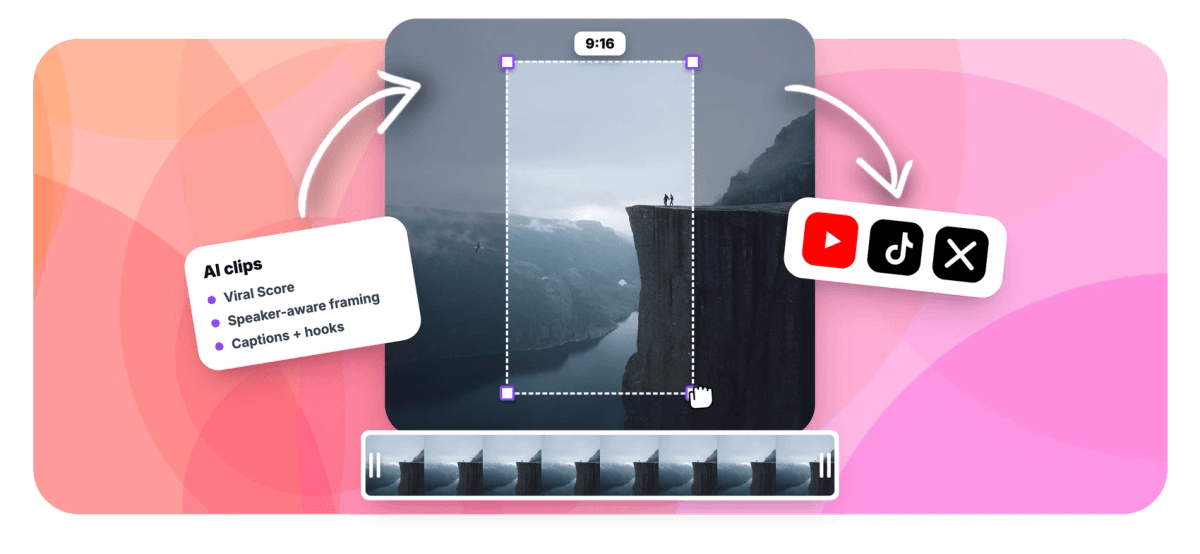
A stream highlights generator only earns its keep if it catches the moments you never narrated: the silent clutch, the jump-scare scream, the round that made chat explode. EchoWave analyzes an uploaded VOD with a language model over the word-timed transcript plus audio energy and reaction peaks read from the soundtrack, so highlights surface even when nobody said anything quotable. Every candidate gets a Viral Score from 0 to 100 with a plain reason, ranked in a grid. Facecam and gameplay share the vertical frame through picture in picture or letterbox over blur, the same engine behind our AI reframe tool, and each clip opens as a full project in the Twitch video editor or exports to 9:16 like the vertical video converter.
-
0-100
Viral Score on every clip, built from Hook, Clarity, Emotion, Value, and Trend sub-scores
-
7 layouts
Smart camera options including picture in picture and letterbox over blur for facecam plus gameplay
-
1-30 clips
Set an exact clip count per VOD, or let auto decide how many moments made the cut
-
~99 languages
Transcription auto-detects the stream's language, and clip titles and captions follow it
What you get
Built for multi-hour VODs, not just soundbites
The biggest time sink after a stream is finding the 30 seconds worth posting. These features remove it.
-
Upload Any VOD File
Drag in a 4-hour ranked session, a Kick recording, or a local OBS file. Analysis runs on the file you provide, no Twitch or YouTube account connection required, so multi-platform streamers keep one workflow.
-
Reaction Peaks, Not Just Quotes
Transcript-only tools miss a silent clutch or a jump scare. EchoWave pairs a language model over the word-timed transcript with audio energy peaks and reaction spikes, so the scream, the win, and the punchline all surface.
-
Viral Score With Reasons
Every candidate clip gets a 0-100 score across Hook, Clarity, Emotion, Value, and Trend, plus a plain-English reason like "big reactions". Streamers without an editor know exactly which highlight to post first.
-
Facecam Plus Gameplay
Picture in picture keeps your reaction in the corner while gameplay fills the 9:16 frame. Letterbox over blur stacks the source shot on a blurred backdrop so neither the game nor your face gets cropped out.
-
Word-Timed Captions
Choose from 60+ caption presets, karaoke, boxed, or word-punch styles, sized for portrait like our Reels maker. Each clip also gets an AI title under 60 characters, a hook line, and 3-6 hashtags.
-
Gaming Preset and Length Controls
Pick the gaming genre preset and a length that fits the platform: Short 15-30 s, Medium 30-60 s, Long 60-90 s, or a custom range. Analyse only a time range if you know roughly when it happened.
-
Long VODs Pick Up Where They Left Off
A five-hour stream takes a while to read, so the job keeps its place. Leave the page, come back, and it carries on by itself, with the waveform, scene cuts and transcript building on screen as it goes.
-
Add Your Own Clip
Spotted a moment the ranking missed? Grab any range from the source strip as a custom clip, type "Find moments about" to search the transcript by topic, or boost keywords that matter to your channel.
How it works
How to generate stream highlights
From raw VOD to posted vertical clips in four steps, no timeline scrubbing anywhere in the process.
-
Upload the VOD
Drop your stream recording into the Clips tool, or pick a file from your library or an existing project. Any uploaded VOD works: Twitch, Kick, or a local OBS capture.
-
Set the Gaming Preset
Choose the gaming genre, a clip length preset, a clip count from 1 to 30 or auto, and 9:16 for vertical. Limit analysis to a time range if the action was late in the stream.
-
Pick From the Ranked Grid
Review candidates sorted by Viral Score, read the reasons, and skim the transcript excerpts and timestamps. Add a custom clip from the source strip if the ranking missed one.
-
Frame, Caption, Export
Apply picture in picture or letterbox over blur, pick a caption preset, then bulk create projects and export. Open any clip in the editor first to adjust shots keyframe by keyframe.
Who uses it
Made for anyone sitting on hours of VOD
-
Twitch streamers
Finish a ranked session, upload the VOD, and post the three biggest reaction moments before viewers move on to the next stream.
-
Kick and multi-platform streamers
One uploaded-file workflow covers every platform. No account connections, no link pulling, the same ranked grid for every recording.
-
Stream editors
Clear a backlog of VOD files fast. Ranked candidates with timestamps and excerpts replace hours of scrubbing per stream.
-
Streamers without clip teams
No moderators clipping live? Upload last night's VOD and let the scoring surface highlight candidates automatically.
-
Clip and highlight channels
Batch a week of streams into vertical clips with titles and hashtags, then bulk export the whole highlight reel at once.
-
Esports and community teams
Workspace-scoped jobs let the whole team see finished runs and pull clips from shared per-workspace minutes.
Post the highlight while it's still fresh
Upload tonight's VOD and have ranked, captioned vertical clips ready before you've finished winding down.
How creators use EchoWave in real projects

About the EchoWave team
EchoWave is a browser-based video and audio editor built by Lemon Vault LLC since 2018. The people who build the editor write these guides and test every step in the production app before publishing.
Stream highlights generator FAQ
How do I generate stream highlights?
Open the Clips tool on EchoWave, upload your VOD file or pick one from your library, and choose the gaming preset. Set a clip length (Short 15-30 s, Medium 30-60 s, Long 60-90 s, or a custom range), pick 9:16 for Shorts and TikTok, and start the run. EchoWave transcribes the stream, scores highlight candidates from 0 to 100, and returns a ranked grid with titles, hashtags, and timestamps. Select the clips you want, bulk create projects, and export. Free accounts get 30 analysis minutes a month, with a small watermark and 720p cap on exports.
Can I make highlight clips without watching the whole VOD?
That is the point of the ranked grid. EchoWave analyzes the whole recording and returns candidates sorted by Viral Score, each with a plain-English reason, a transcript excerpt, timestamps, and duration, so you evaluate moments in seconds instead of scrubbing hours. If you remember roughly what happened, type it into the "Find moments about" prompt and the tool searches the transcript for matching moments. You can also restrict analysis to a time range, useful when the good part was in the last hour of a six-hour stream.
Do I need to connect my Twitch account to use it?
No. EchoWave works from an uploaded file only: drag in the VOD, pick it from your library, or point at a direct media link. There is no Twitch, Kick, or YouTube account connection and no link pulling from those platforms, which suits multi-platform streamers and anyone who would rather not hand over account access.
How does AI know which part of a stream is a highlight?
A language model reads the word-timed transcript for hooks, payoffs, and back-and-forth exchanges, while signal analysis measures audio energy peaks, reaction spikes, silences, speaking turns, and scene cuts. Combining both matters for streams: the best moments, a clutch play, a jump scare, chat exploding as you scream, often are not where you said something quotable, so transcript-only detection misses them. Each moment is scored 0-100 across Hook, Clarity, Emotion, Value, and Trend, with a short reason explaining why it ranked.
What's the best way to show facecam and gameplay in a vertical clip?
Use one of the smart camera layouts built for this exact problem. Picture in picture keeps the facecam in a corner while gameplay fills the vertical frame. Letterbox over blur places the widescreen shot over a blurred backdrop so neither the game nor your face gets cropped away. On-screen speaker detection (lip movement matched to the voice) keeps framing on whoever is talking, and every camera move is stored as ordinary keyframes you can edit shot by shot in the editor.
How long should a stream highlight clip be for TikTok or Shorts?
The length presets match platform norms: Short is 15-30 seconds, Medium is 30-60, Long is 60-90, and a custom range covers anything else. For TikTok and Shorts, most stream highlights land best in the Short and Medium bands, long enough for setup and payoff, short enough to hold attention. Set the length before the run and every candidate is cut to fit, or leave it on Auto and let the shape of the moment decide.
Can I use it on a VOD I already downloaded from another platform?
Yes, uploaded files are the whole model. A downloaded Twitch VOD, a Kick recording, a local OBS capture, or a stream with screen share (the analysis is screen share aware) all go through the same workflow, which makes it practical for editors clearing a backlog recorded across platforms. Note that EchoWave analyzes recordings after the stream ends; it does not clip live during a broadcast. Work through the backlog one VOD at a time; if you leave mid-run, the job picks up where it left off when you return.
Is there a free tool to generate stream highlights?
Yes. The free plan includes 30 analysis minutes a month, enough to test the workflow on a chunk of a stream, and free exports carry a small watermark with a 720p cap. Creator raises analysis to 180 minutes a month and exports at 1080p, Pro gives 600 minutes and 4K exports, and Ultra covers 3,000 minutes with workspace-scoped jobs for teams. Every clip opens as a full project in the editor regardless of plan.
Stop scrubbing VODs. Start posting clips.
Upload a stream recording and get ranked, captioned highlight clips in minutes, free to start.
Get Started →