Free Online Meeting Recorder
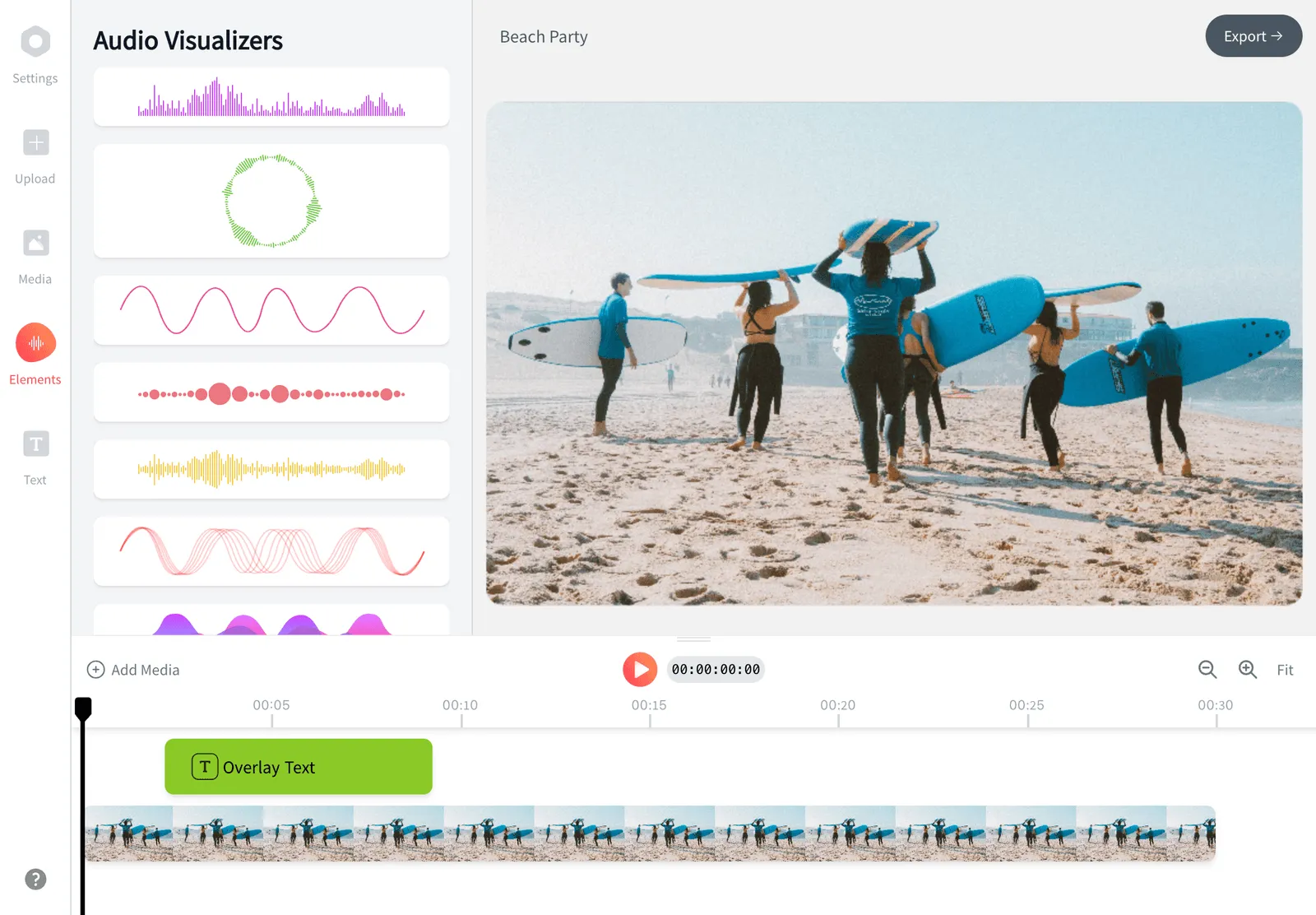
EchoWave is a free online meeting recorder that captures your screen, microphone and webcam straight from the browser, with no bot joining the call. Record the tab where Zoom, Google Meet or Microsoft Teams is running, or upload a recording you already have. Then transcribe the conversation automatically, cut the video down by editing the transcript, and style captions with 176 presets. The button opens the free screen recorder: record up to 60 minutes per take and download the raw recording with no watermark (WebM in Chrome, MP4 in Safari); press Save & edit to continue in the editor, where free exports are 720p MP4 with a small badge and a short end card, and on a paid plan you can download the transcript as SRT, VTT, TXT or JSON. Or hand the finished recording to the AI clip generator, which scores each moment from 0 to 100 and returns ranked, captioned highlights.

Free Online Meeting Recorder Features
EchoWave's meeting recorder is used by remote teams, consultants, researchers and educators around the world.




Record and edit
A meeting recorder that hands you a finished video
Most meeting tools stop at a raw recording. EchoWave keeps going: the same project moves from the screen recorder into a multi-track editor with automatic meeting transcription, filler word removal and caption styling. There is no calendar bot and no auto-join. You record your own screen, which works with any meeting app and keeps you in control of what gets captured. When the call ends, the built-in AI clip generator scans the transcript, gives each candidate moment a Viral Score from 0 to 100, and returns up to 30 captioned clips, each an ordinary project you can reopen in the editor.
-
176
caption presets for meeting captions
-
86
subtitle translation languages
-
4
transcript download formats on paid plans (SRT, VTT, TXT, JSON)
-
39
editing tools inside Echo, the AI assistant
Record, then edit
From live call to finished cut in one tool
Everything below runs in the same browser tab, so the recording drops straight into an editing project.
-
Record screen, mic and webcam in one studio
The recorder studio includes a screen recorder with audio, a webcam recorder, a voice recorder and a presentation recorder with a built-in teleprompter. Pick the tab or window where your call is running and hit record. Nothing joins the meeting as a participant, so the call itself stays untouched.
-
Or upload a recording you already have
Got a downloaded Zoom recording or an old Teams file sitting in a folder? EchoWave accepts 20 video input formats, including MP4, MKV, WebM, MOV and AVI. Upload the file and every transcription and editing feature on this page works exactly the same way.
-
Automatic transcription that detects the language
Speech-to-text runs on the whole recording with word-level timestamps, and it auto-detects the spoken language, so there is no setup screen to get wrong. The transcript doubles as captions with 176 named presets, from clean corporate lines to word-by-word karaoke styles. The meeting transcription page walks the full workflow.
-
Cut the video by editing the transcript
Delete a sentence in the transcript and the matching video disappears from the timeline. One click removes filler words like um and uh, another strips long silences. A rambling 47-minute call becomes a tight recap without scrubbing a waveform.
-
Trim highlights on a real timeline
Under the transcript sits a multi-track magnetic timeline with split, trim, merge and speed change from 0.25x to 4x. Pull out the three minutes where the decision happened, add a title card, and drop the small talk. It is a full video editor, not a viewer with a trim handle.
-
Translate captions into 86 languages
Subtitle translation, a Pro feature, covers 86 languages, and bilingual subtitles show the original and the translation on screen together. That helps when the meeting ran in English but half the team reads Spanish or Japanese. Translation changes the subtitle text only, never the audio.
-
Export the transcript and subtitle files
Burn captions permanently into the video for players that ignore subtitle tracks, or on a paid plan download subtitles as SRT, VTT, TXT or JSON. The TXT file gives you a plain transcript to paste into notes, a doc or a ticket. SRT and VTT files import back in if you edit them elsewhere first.
-
Ask Echo to do the tidy-up
Echo is the AI assistant built into the editor, with 39 editing tools. Tell it to caption the recording, cut everything before the agenda started, or add a zoom pop on the shared spreadsheet. It saves a checkpoint before big changes, so one click reverts anything you dislike.
-
Let AI Pull the Decisions and Highlights
Run the AI clip generator on a recorded call: every candidate moment gets a Viral Score from 0 to 100 with Hook, Clarity, Emotion, Value and Trend sub-scores plus plain-English reasons. Request 1 to 30 clips or prompt-search the transcript for a topic.
-
Seven Camera Layouts That Follow the Speaker
Smart camera reframes the recording with on-screen speaker detection, lip movement matched to the voice, and cuts between people on their turns. Choose from seven layouts, including Presenter + slides for screen shares, and adjust every move afterward as ordinary keyframes.
How it works
How to record a meeting
From live call to shareable recap in four steps, with nothing to install.
-
Open the meeting recorder
Go to echowave.io and open the recorder studio. There is nothing to install; it runs in Chrome, Edge, Firefox or Safari on Mac, Windows, Linux and Chromebooks. An old laptop is fine because the heavy rendering is done for you.
-
Record your call
Choose the screen recorder, pick the tab or window with your meeting, and enable audio along with your microphone (tab and system audio capture works in Chrome and Edge only). Join the call as usual and let the recording run alongside it. Tell participants you are recording, since consent laws in many places require it.
-
Transcribe and cut the highlights
Press Save & edit to open the recording in the editor, then run auto-captions to get a word-accurate transcript, then edit the text to cut the video. Remove filler words and silences in a click each, and trim the timeline down to the decisions, demos and action items.
-
Export and share
Download the raw recording straight from the recorder, free and without a watermark. If you edited it in the editor, free exports there are 720p MP4 with a small badge and a short end card, and paid plans add 1080p and beyond. On a paid plan, download SRT, VTT, TXT or JSON alongside the video, then share the file wherever your team talks.
Who records with it
Six ways teams use their meeting recordings
-
Client call recaps
Send a five-minute recap instead of a sixty-minute recording nobody opens. Trim to the decisions, caption it, and attach the SRT (paid plans) so the conversation stays searchable later.
-
Async standups and all-hands
Record the all-hands once and post a captioned cut for everyone who was asleep when it happened. Silence and filler removal tighten the runtime before you post it to the team channel.
-
User research interviews
Record interviews, transcribe them with word-level timestamps, and clip the exact moments where users struggled. A captioned highlight reel lands harder in a readout than quotes pasted on a slide.
-
Sales demos
Turn a strong live demo into a reusable asset. Cut the setup chatter, add a zoom pop on the product, and export a clean MP4 for follow-up emails and proposals.
-
Training and onboarding
Record a process walkthrough with the presentation recorder and its built-in teleprompter, then add text overlays and captions. New hires get the same explanation every time, on demand.
-
Lectures and webinars
Burned-in captions help students rewatch on mute, and Pro subtitle translation into 86 languages makes one recording work for international cohorts. The TXT transcript doubles as study notes.
Compare
How EchoWave compares
| Feature | EchoWave | VEED | Riverside | Loom |
|---|---|---|---|---|
| Records with no install | Yes | Yes | Yes | yes (extension or app) |
| Captures Zoom, Meet or Teams from your screen | Yes | Yes | no (records its own studio calls) | Yes |
| Free recordings and exports | yes (720p, watermark badge) | yes (watermark) | yes (limits) | yes (25 videos, 5 min each) |
| Automatic transcription | yes (auto-detects language) | Yes | Yes | Yes |
| Edit the video by editing the transcript | Yes | Yes | Yes | yes (paid) |
| Filler word and silence removal | Yes | Yes | Yes | yes (paid) |
| Styled caption presets | yes (176) | Yes | limited | No |
| Subtitle translation | yes (86 languages, Pro) | yes (paid) | No | No |
| Instant share link after recording | no (download and share the file) | Yes | Yes | Yes |
| AI meeting summaries | No | No | yes (show notes) | yes (paid) |
| Separate track per participant | No | No | Yes | No |
| Auto-joins meetings from your calendar | No | No | No | No |
Based on each tool's public pages as of July 2026. Plans change, so check current pricing before deciding. Note that none of these four auto-join calls from a calendar; if you want a notetaker bot on every scheduled call, use one, then bring the file to EchoWave for the edit.
Record your next meeting, no install
Open the recorder studio, capture the call with audio, and walk away with a transcript, styled captions and a tight highlight cut instead of an hour-long file nobody watches.
What creators say after trying EchoWave

About the EchoWave team
EchoWave is a browser-based video and audio editor built by Lemon Vault LLC since 2018. The people who build the editor write these guides and test every step in the production app before publishing.
Free Online Meeting Recorder FAQ
Does the meeting recorder work with Zoom, Google Meet and Microsoft Teams?
Yes, because it records your screen rather than plugging into any one platform. Open the tab or window where the call is running, enable audio, and everything you see and hear gets captured. The same approach covers Webex, Slack huddles and anything else that plays on your screen.
Do other participants know I am recording?
EchoWave does not add a bot or send notifications into the call, so nothing announces the recording automatically. That makes it your job to tell people. Recording consent laws differ by country and by US state, and many require agreement from everyone on the call, so announce it at the start.
Can I record a meeting if I am not the host?
Yes. Host-only recording restrictions apply to a platform's built-in recorder, not to your own screen. EchoWave captures whatever plays on your machine, so you do not need recording permission toggled on in Zoom or Teams. You still need the human kind of permission, so ask first.
How do I transcribe a meeting recording?
Open the captions panel and run auto-captions. Speech-to-text detects the spoken language automatically and returns a transcript with word-level timestamps. From there you can edit cues, style captions with 176 presets, translate into 86 languages with Pro, or download the text as SRT, VTT, TXT or JSON on a paid plan.
Does EchoWave write AI meeting summaries or action items?
No. EchoWave is a recorder and video editor, not a notetaker, so it will not generate bullet-point minutes. What you get instead is a full transcript you can download as TXT on a paid plan plus a fast way to cut the video itself down to the moments that matter, which is often more useful to share.
Can I export just the audio of a meeting?
Yes, the editor exports audio-only files. MP3 and M4A are available from the Creator plan, with WAV and FLAC from Pro; the free plan exports MP4 video only. If all you need is an audio record of calls, factor that into which plan you pick.
Is EchoWave's meeting recorder free?
Recording and downloading the raw take (up to 60 minutes) is free with no watermark, and editing and transcription are free too. Free editor exports are HD MP4 up to 720p with a small removable EchoWave watermark badge and a short end card. Paid plans remove both and add 1080p on Creator, then 1440p, 4K, MOV and GIF exports on Pro.
Can I turn a long meeting into short clips?
Yes. Split the timeline at the moments worth keeping, then resize the canvas to 9:16 or 1:1 for Slack, LinkedIn or Shorts. Word-by-word caption presets built from the transcript keep the clips watchable with the sound off.
Can EchoWave find the key moments in a meeting automatically?
Yes. Run the AI clip generator on the recording. Every candidate moment gets a Viral Score from 0 to 100 with Hook, Clarity, Emotion, Value and Trend sub-scores, plus a plain-English reason for each pick. Choose the meeting preset, ask for 1 to 30 clips, or type a prompt like 'find moments about the budget' to search the transcript. Clips come back with word-timed captions in any of 60+ styles, and each opens in the editor for further trimming. Analysis covers 30 free source minutes a month; free exports carry a small watermark at 720p. There is no scheduler, so you post the clips yourself.
Can I see what the AI clip generator is doing with my meeting recording?
Yes. While the recording is analyzed, the Clips page shows the work live: frames being read with faces tracked, the audio waveform, scene and screen changes, and the transcript as it is written, then clips arriving ranked by score. If you leave the page and come back, the job picks up where it left off by itself. Every clip then becomes an ordinary EchoWave project, and each camera move is stored as normal keyframes, so you can edit the framing shot by shot before exporting.
What file types can I upload if the meeting was recorded elsewhere?
EchoWave accepts 20 video input formats, including MP4, MOV, WebM, MKV, AVI, WMV and TS. Browser preview can be limited for a few of them, MKV in particular, but uploads still render at full quality on export. Common audio files like MP3, WAV and M4A work too.
Ready to record your next meeting?
Record free with nothing to install and download the raw recording without a watermark; free editor exports carry a small removable badge.
Get Started →