Video to GIF Converter, Free and No Watermark
Turn any clip into a looping animated GIF right in your browser. Trim it, set the frame rate and quality, then export. It is free, with no signup and no watermark. Need more control? Open it in the video editor.


Video to GIF Converter, Free and No Watermark Features
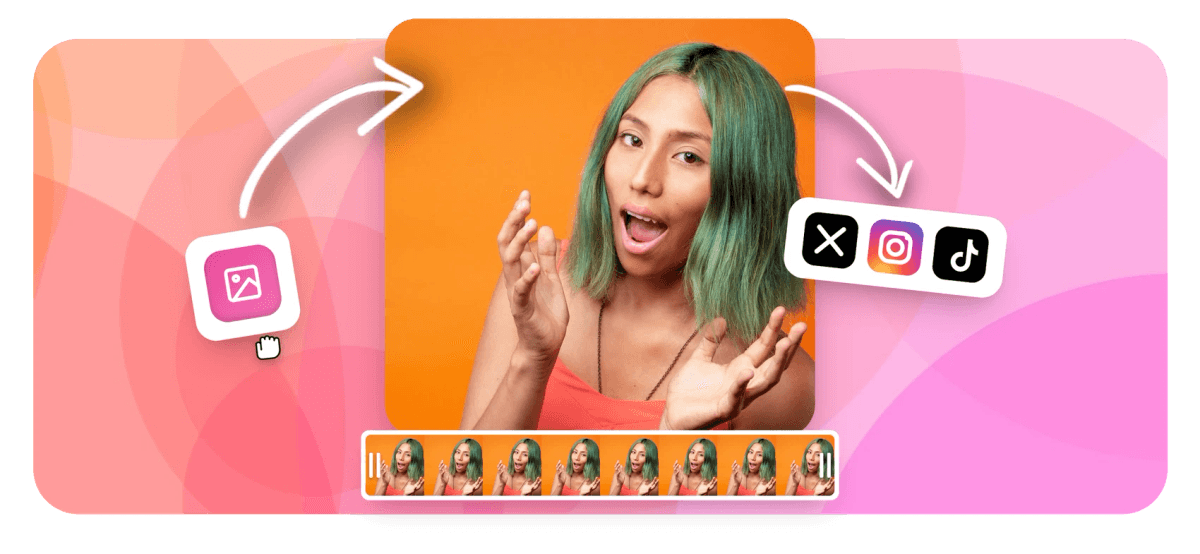
To convert a video to a GIF, upload your clip to EchoWave's GIF maker, trim it to the moment you want, set the frame rate (fps) and quality, then export an animated GIF. It runs in your browser with no signup and no watermark, and turns MP4, MOV, WebM and more into a looping GIF in seconds.
Trusted by thousands of creators worldwide





How to make a GIF from a video
EchoWave turns any video into a GIF in three quick steps: upload, trim, and export.
-
1. Upload your video
Drag in your clip or browse to upload it. The converter works with virtually every format (MP4, MOV, WebM, AVI, MKV, FLV and more), so whatever you recorded, you can turn it into a GIF.

-
2. Trim and set options
Drag the handles to keep just the moment you want, then pick a frame rate and quality. Higher fps means smoother motion; a shorter clip keeps the GIF small and quick to load.
-
3. Export your GIF
Hit export and download your looping animated GIF. It is ready to drop into Slack, Discord, X, a website, or anywhere GIFs are welcome, with no watermark.
What creators say after trying EchoWave
Convert any video format to GIF
EchoWave takes whatever footage you have and turns it into a clean animated GIF. There is no need to convert your file first. Upload it straight from your phone, camera, or screen recorder and export the GIF in your browser.
| Input format | Common source | Turns into |
|---|---|---|
| MP4 | Phones, social downloads, screen recorders | Animated GIF |
| MOV | iPhone, iPad, QuickTime, Mac | Animated GIF |
| WebM | Web clips and browser recordings | Animated GIF |
| AVI, MKV, FLV, WMV | Older containers and downloads | Animated GIF |
It works as an MP4 to GIF converter for the most common web format, and just as readily handles MOV from an iPhone or WebM from a browser recording. Upload, trim, export: the output is a standard looping GIF that plays in chat apps, social feeds, email, and web pages without a plugin.
Set the fps, length, and quality
A GIF is a trade-off between smoothness and file size, and EchoWave puts that choice in your hands instead of guessing for you. Three controls decide how the result looks and how heavy it is.
- Frame rate (fps). More frames per second means smoother motion but a heavier file. Around 10 to 15 fps looks great for most reaction clips and screen recordings; push toward 24 fps only for fast action where stutter would show.
- Length. GIFs store full frames rather than the compressed difference between them, so duration adds weight quickly. Trim to the few seconds that matter and the file stays small. A two to four second loop is the sweet spot for chat and feeds.
- Quality. Dial quality up for crisp detail or down for the smallest possible file. Because everything runs in your browser, you can change the trim, fps, and quality and re-export as many times as you like, with no upload queue, no signup, and no watermark on the result.
A quick rule of thumb: file size scales roughly with fps multiplied by length multiplied by frame area. Halving any one of those roughly halves the size, which is why cropping and trimming do more for a heavy GIF than the quality slider alone.
Make a high-quality GIF without losing detail
The GIF format caps color at a 256-shade palette per frame, so the trick to a sharp result is keeping everything before that step pristine. EchoWave works from your original footage at full resolution and only reduces to the GIF palette on export, so you never stack one lossy re-encode on top of another. Pick a high quality setting and the GIF stays as crisp as the format allows.
Two things the GIF format cannot do, no matter which tool you use: GIFs have no audio track, so any sound in your clip is dropped, and they support only fully opaque or fully transparent pixels, with no smooth alpha edges. If you need full color, sound, and a much smaller file, export your clip as an MP4 in the editor instead. Sites like X and Discord quietly convert uploaded GIFs to video for exactly that reason. Either way, EchoWave never stamps a watermark on your work.
What people make GIFs of
A GIF maker earns its place in a creator's kit because the format plays inline anywhere, with no player to load and no click to start. Common uses include:
- Reaction GIFs. Clip the perfect second from a movie, stream, or call and loop it.
- Product demos. Show a feature in motion on a landing page without embedding a heavy video.
- Tutorials and how-tos. A short silent loop explains a single UI step better than a static screenshot.
- Social posts and memes. Eye-catching loops for X, Reddit, Tumblr, and group chats.
- Logos and banners. Short branded animations that play in email and on pages where video is blocked.
Want to do more before exporting? You can crop the video to reframe it for a square or vertical feed, trim it to the exact beat, or loop it so the motion repeats cleanly. It is all in the same browser editor, no extra upload required.
Sizing a GIF for Discord, Slack, and X
Every platform treats GIFs a little differently, so aim your fps, length, and crop at where the GIF is going:
- Discord. Uploads run up to 8 MB on a free account (50 MB on Nitro Basic, more on full Nitro). For a profile picture or an inline GIF that auto-plays without a click, keep it under 256 KB, which usually means a short loop, a smaller frame, and 10 to 15 fps.
- Slack. GIFs animate inline in messages, but very large files load slowly for everyone. A width around 480 px, roughly 10 fps, and under 8 seconds keeps things snappy. Custom emoji are a separate case: 128 by 128 px and under 128 KB.
- X (Twitter). GIFs are accepted up to 15 MB on the web and converted to looping video on the platform, so a clean source GIF matters more than squeezing every byte.
- Websites and email. Smaller is always better for load speed. Crop tight, trim short, and lean on a lower fps before you touch the quality slider.
If a GIF comes out too heavy for a platform, the fastest fixes are trimming the length and compressing the clip before you convert.
Works on any device, right in your browser
There is nothing to install and no account to create. The converter runs entirely in your browser, so it works the same on Windows, Mac, Chromebook, and Linux, and on iPhone and Android too. Open EchoWave in Safari or Chrome on your phone, upload a clip from your camera roll, trim it, and download the GIF straight to your device.
That also makes it a quick way to handle a YouTube video to GIF: export or download the clip you own first, then upload it here, trim to the part you want, and convert. No software, no signup, no watermark, just a GIF, free.

About the EchoWave team
EchoWave is a browser-based video and audio editor built by Lemon Vault LLC since 2018. The people who build the editor write these guides and test every step in the production app before publishing.
Frequently Asked Questions
How do I convert a video to a GIF for free?
Upload your clip to EchoWave's video to GIF converter, trim it to the moment you want, set the frame rate and quality, then export. It is free with no signup and no watermark.
How do I make a GIF from a video?
Upload the video, drag the trim handles to keep just the part you want, choose an fps and quality, and hit export. EchoWave gives you a looping animated GIF you can download right away.
What video formats can I turn into a GIF?
MP4, MOV, WebM, AVI, MKV, FLV, WMV and more. Upload your file in whatever format you have and EchoWave handles the common containers, including MP4 and MOV.
What fps should I use for a GIF?
Around 10 to 15 fps looks smooth for most reaction clips and screen recordings while keeping the file small. Use up to 24 fps for fast action, but remember every extra frame makes the GIF heavier.
How long can a GIF be?
There is no hard limit, but GIFs store full frames so they grow fast. Keeping a clip under about 10 seconds, and ideally 2 to 4 seconds for chat and social, keeps the file light and quick to load.
Will converting a video to GIF lose quality?
GIF caps color at a 256-shade palette, so it is not lossless by nature, but EchoWave converts from your full-resolution source in a single step. Pick a high quality setting and the GIF stays as crisp as the format allows.
Why is my GIF file so large?
GIFs store every frame in full, so long clips, high frame rates, and large dimensions all balloon the size. Trim the length, crop tighter, and lower the fps to shrink it. For a much smaller result, export an MP4 instead.
Do GIFs have sound?
No. The GIF format has no audio track, so any sound in your video is dropped when you convert. If you need sound, export the clip as an MP4 in the editor instead.
Does the GIF loop automatically?
Yes. EchoWave exports a standard animated GIF that loops on its own wherever GIFs play, in chat apps, social feeds, and web pages, with no extra setup.
How do I turn a YouTube video into a GIF?
Export or download the clip you own first, then upload it to EchoWave, trim to the part you want, and convert it to a GIF in your browser.
Can I make a GIF on my phone?
Yes. Open EchoWave in mobile Safari or Chrome, upload a video from your camera roll, trim it, and download the GIF. There is no app to install on iPhone or Android.
Is there a watermark or signup?
No watermark and no account required. Convert any video to a GIF completely free, right in your browser.