
Make a Voiceover Video: Record Your Voice or Use AI Voices
EchoWave is a voiceover video maker that runs in your browser. Record narration with your microphone, or type a script and generate one with 63 AI voices, then sync it to your footage and export. Free to start, no download or signup required.


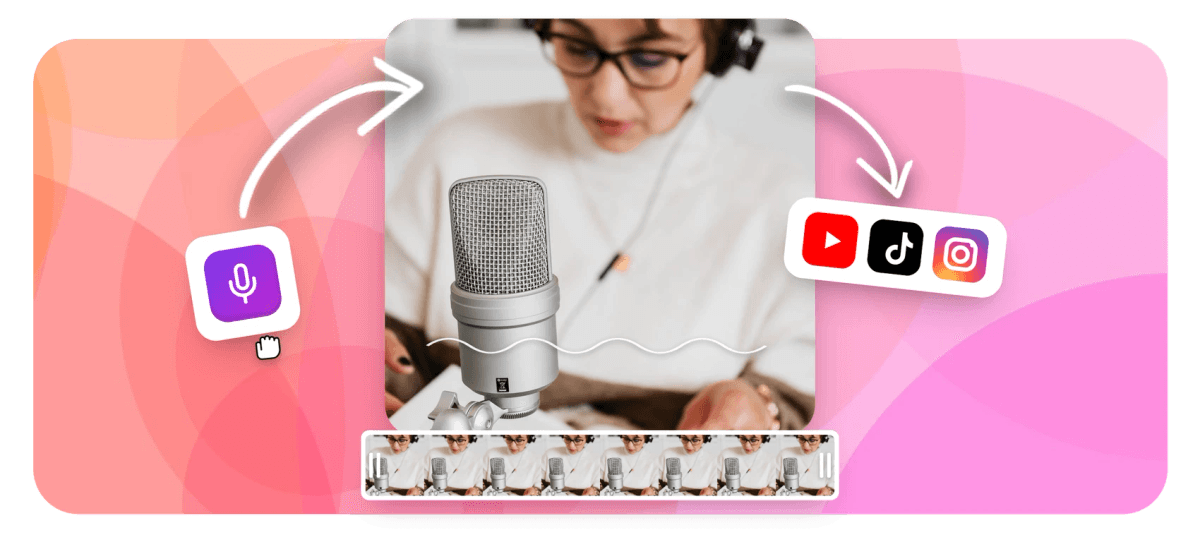
Make a Voiceover Video: Record Your Voice or Use AI Voices Features


A voiceover video maker turns a script or a spoken take into narration that sits on your video timeline, ready to sync with the picture. EchoWave lets you do this two ways: record straight from your microphone in the browser, or type a script and generate a natural voice with AI. Either way, the voice lands on its own track next to your footage, music, and captions, so you can trim it, move it, and balance the volume before you export. It is free to start, runs entirely in your browser, and needs no download or signup to try.
Two ways to add the voice
There are two ways to put a voiceover on your video in EchoWave, and you can pick whichever fits the project.
Record with your own voice. Grant microphone access once, then record narration straight in the browser while your video plays, so you can speak in time with the action. This is the same recording workflow covered in detail in our guide on how to add voiceover to video, including tips on mic setup, room choice, and balancing narration against your original audio.
Generate a voice with AI. Type or paste your script and pick from 63 AI voices spanning different genders, accents, and speaking styles. Preview a voice against your script before committing, and if none of the presets sound right, clone your own voice from a short recording and reuse it on every future project.
How to make a voiceover video
Going from a blank project to a narrated, exported video takes three steps in EchoWave.
-
1. Upload Your Video
Drag in your clip (MP4, MOV, WebM, MKV or AVI), or start from a blank canvas if you are building a voice-first video like a slideshow or presentation recording.

-
2. Record Your Voice or Generate One with AI
Record narration from your microphone while the video plays, or type a script and generate a voice from 63 AI options, cloning your own voice if you want it consistent across projects. Drag the track to line it up with your footage.
-
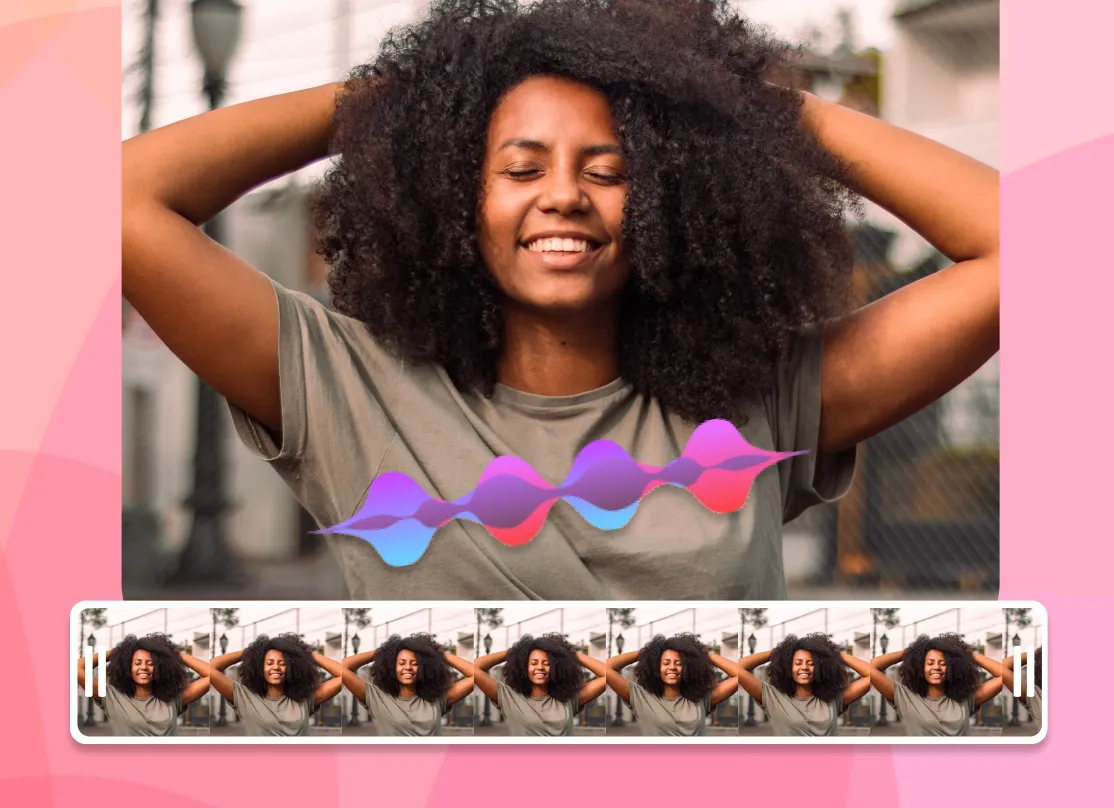
3. Add Captions and Export
Run auto captions on the voice track, then export an HD MP4 at up to 60fps, ready to upload anywhere.
How creators use EchoWave in real projects
What you can make with a voiceover video maker
Narration turns raw footage, a screen recording, or a slideshow into something a viewer can follow without reading. Common projects include:
- Tutorials and explainers: narrate each step of a process while a screen recording or product shot plays, so viewers can follow along instead of pausing to read captions.
- Product demos: walk through a feature or product without needing an on-camera presenter, useful for marketing teams shipping a demo video on a deadline.
- Faceless YouTube and Shorts channels: pair stock or b-roll footage with a scripted AI voice, one of the most common formats for channels that never show a face on camera.
- Presentations: record a screen capture of your slides, then add narration timed to each transition, so the deck plays back like a finished video.
- Real estate walkthroughs: layer a calm, professional voiceover over a property tour to point out rooms and features without anyone standing on camera.
Timing the voiceover to your visuals
Once the voice track is on the timeline, it behaves like any other clip. Drag it left or right to line up a line with the moment it describes, split it if you need a pause, or trim the head and tail to tighten a take. Because the voice sits on its own track, it never overwrites your original footage or music.
Volume matters as much as timing. If your clip has useful ambience or music underneath, lower that track so the voice sits clearly on top instead of competing with it. If the original sound does not add anything, mute it and let the voiceover carry the video on its own.
Pair captions with your voiceover
A large share of viewers watch with the sound off, especially on social feeds, so a voiceover works best alongside captions rather than instead of them. Once your narration, recorded or AI-generated, is on the timeline, run auto captions and EchoWave transcribes the voice track into synced subtitles you can style to match your video. See add subtitles for the full walkthrough, including translation into other languages for international audiences.
Make Your Voiceover Video

About the EchoWave team
EchoWave is a browser-based video and audio editor built by Lemon Vault LLC since 2018. The people who build the editor write these guides and test every step in the production app before publishing.
Voiceover Video Maker FAQ
How do I make a video with a voiceover?
Upload your video, or start from a blank canvas, in EchoWave, then record narration from your microphone or generate one with AI voices. Drag the voice track to line up with your footage, add captions if you want them, and export. The whole process runs in your browser with no software to install.
Can AI generate the voiceover for me?
Yes. Type or paste your script and choose from 63 AI voices across different genders, accents, and styles. The generated audio streams in and drops onto your video timeline as a clip you can trim and reposition, so you never need to record yourself.
Can I clone my own voice?
Yes. Record a short sample of your voice and EchoWave builds a cloned voice model you can reuse on every future project, so your narration stays consistent without re-recording each time. You can only clone your own voice; cloning someone else's voice without consent is not permitted.
Do I need a microphone?
No, not if you generate the voice with AI. If you would rather use your own voice, any built-in laptop or phone microphone works for recording in the browser, though a standalone USB or headset mic gives a noticeably cleaner result.
Is EchoWave's voiceover video maker free, and is there a watermark?
Yes, it's free to start with no signup required. You can record or generate a voiceover, sync it to your video, and export at no cost. Free exports include a small EchoWave watermark, which you can remove by upgrading to a paid plan.
What languages can the AI voices speak?
EchoWave's AI voice engine covers a wide range of languages and accents, so you can script your narration in your target language rather than recording it yourself. Pair the voiceover with translated captions to localize the full video for international viewers.
Can I add subtitles to the voiceover automatically?
Yes. Once your voiceover, recorded or AI-generated, is on the timeline, run auto captions and EchoWave transcribes it into synced subtitles. Captions can also be translated into other languages, which is useful since many viewers watch with the sound off. See add subtitles for details.
What video and audio formats can I use?
You can upload video in MP4, MOV, WebM, MKV, or AVI. If you are adding a voice recording made elsewhere instead of recording in the browser, EchoWave accepts MP3, WAV, FLAC, M4A, AAC, and OGG audio files. Exports come out as HD MP4.
What's the difference between recording my own voice and using an AI voice?
Recording captures your actual voice through your microphone, which matters when your own voice is part of your brand or channel. Generating with AI turns a typed script into narration with no microphone needed, which is faster when you already have a script and do not want to record and clean up audio yourself. Both land on the same timeline, so you can even mix the two in one project.
Ready to make your voiceover video? We have a free plan!
No credit card required, our free plan includes a small Echowave.io watermark.
Get Started →























































