
YouTube Music Visualizer
Turn any track into a video that reacts to your sound, then upload it straight to YouTube. Add bar, wave, line or siri effects in your browser, free, with no software to install.


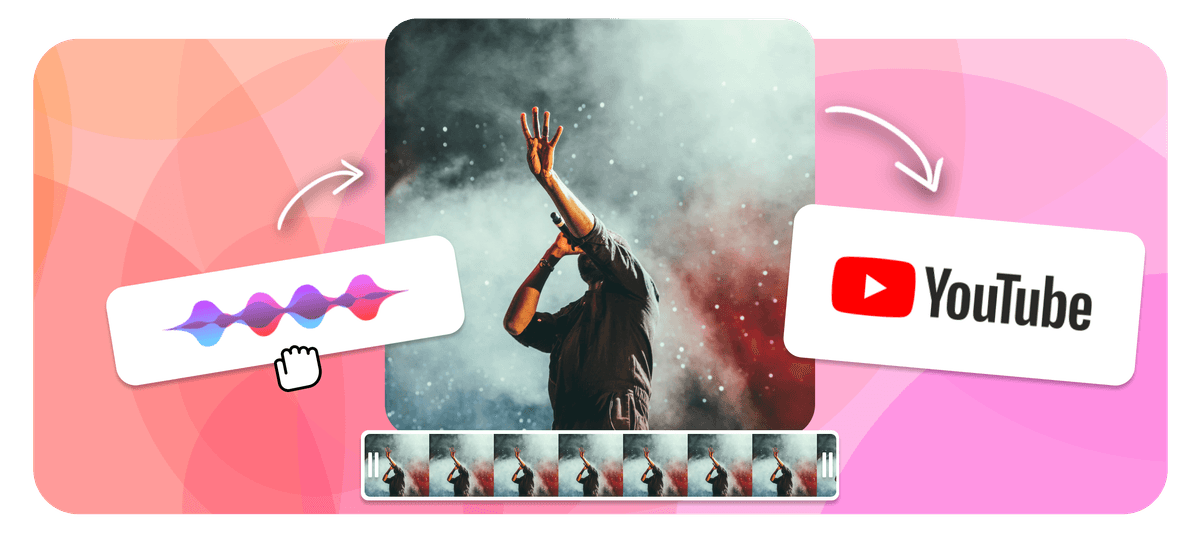
YouTube Music Visualizer Features
Echowave is used by thousands of businesses around the world





A YouTube music visualizer turns an audio track into a video where animated bars, waves or lines move in time with the sound, so you have something watchable to upload instead of a static image. EchoWave is a free music visualizer for YouTube that runs in your browser: import your audio, pick a visualizer style, drop in a background, and export an MP4 that is ready for YouTube. There is no app to install and no signup to start, so it works as an online YouTube music visualizer on any device.
Why YouTube needs a video, not just audio
YouTube is a video platform, so you cannot upload an MP3 or WAV on its own. Every track needs a moving picture wrapped around it, even if that picture is just your cover art. A music visualizer solves this neatly: instead of a frozen thumbnail sitting on screen for three minutes, the animation reacts to the audio so the viewer has something to look at. That small bit of motion tends to hold attention longer, which matters because watch time feeds directly into how YouTube recommends your video.
Visualizers are the standard format for music releases, lyric drops, beat tapes, lo-fi mixes, podcasts and DJ sets posted to YouTube. They give a channel a consistent look without forcing you to shoot or film anything.
How the EchoWave YouTube music visualizer works
The whole process runs in the editor, so there is nothing to download. You start by importing your audio or an existing video. This audio visualizer for YouTube music reads the waveform and drives the animation from the real frequencies in your file, so the movement matches the music rather than looping a generic clip.
You then choose a visualizer style and place it on the canvas. There are four core types:
- Bar: vertical bars that jump with the beat, the classic equalizer look that reads well at small sizes.
- Wave: a flowing waveform line, good for ambient, acoustic and spoken-word audio.
- Line: a thin reactive line that sits cleanly along an edge or under a title.
- Siri: a smooth, rounded ribbon similar to a voice-assistant animation, nice for vocals and podcasts.
Color, size, thickness, opacity and position are all adjustable, so the visualizer can match your cover art or brand palette. You can add more than one visualizer to a single canvas, layer a background image or looping video behind it, and place your track title, artist name or logo on top. When the look is right, you export an MP4 with the animation rendered into the frames, ready to upload.
Pick the right size for where it goes
YouTube handles several shapes, and choosing the right one before you export saves a re-render later:
- 16:9 (1920x1080): the standard for the main YouTube watch page and TV apps. Use this for full music uploads, lyric videos and DJ mixes.
- 9:16 (1080x1920): vertical, for YouTube Shorts. Good for clipping a hook or a 15 to 60 second snippet to drive people to the full track.
- 1:1 (1080x1080): square, which travels well if you are also posting the same clip to Instagram feed or a community tab.
For a full-length song, 16:9 at 1080p is the safe default. If your release strategy leans on Shorts, export a 9:16 version of the hook as well. EchoWave lets you set the canvas size up front so the visualizer is composed correctly for each placement.
Supported formats and export specs
You can bring in common audio and video files: MP3, WAV, M4A and AAC for audio, and MP4, MOV and WebM for video backgrounds. If the browser cannot read a less common container locally, EchoWave still uploads the file so it can be processed, so an unusual codec will not stop you cold.
Exports come out as MP4 with H.264 video, which is the format YouTube recommends and the one that uploads and transcodes fastest. That keeps your visualizer compatible with every YouTube client, from the web player to mobile apps and smart TVs. YouTube itself accepts a long list of inputs (MOV, AVI, WMV, FLV and more), but H.264 MP4 is the path of least friction, so it is what EchoWave produces.
Uploading and posting on YouTube
Once your MP4 has downloaded, open YouTube Studio, click Create, then Upload videos, and drop in the file. Give it a clear title (track name and artist), write a description with any credits or links, and add tags that match the genre. Pick a custom thumbnail rather than letting YouTube grab a random frame, since a strong thumbnail does most of the work in search and on the home feed.
A couple of practical notes from doing this a lot: declare any music you do not own correctly, and remember that copyrighted tracks may trigger Content ID, which can place ads or restrict the video in some regions. If you are publishing your own original music, you keep full control. For a release, schedule the upload as Public at a set time and share the link the moment it goes live.
Real use cases
- Music releases: independent artists turn a finished master into a watchable upload without paying for a video shoot.
- Beat and sample packs: producers loop a background and let the visualizer carry the energy.
- Lyric and podcast content: pair a lyric video or a spoken episode with a calm wave or siri animation so there is motion on screen.
- DJ mixes and playlists: one long visualizer over an hour-long set keeps the video feeling alive.
- Shorts teasers: a 9:16 clip of the catchiest 20 seconds, with a link to the full track.
If you only need to wrap a single audio file in a simple frame, our MP3 to YouTube tool is the quickest route. For more design control over the visualizer itself, the full music visualizer editor is the place to go.
Privacy, pricing and limits
Everything happens in your browser, so your audio is loaded into the editor on your own device while you work rather than sitting on a public server. EchoWave is free to use: you can make a YouTube music visualizer and export it without paying. Free exports carry a small EchoWave watermark in a corner, which you can remove by upgrading to a paid plan. There is no credit card required to start, which is why people reach for this free music visualizer for YouTube over a paid app.
The tool runs in any modern browser (Chrome, Edge, Firefox and Safari) on desktop and works on tablets and phones too, though a larger screen makes fine positioning easier. Render time depends on the length of your track and your device, so a three-minute song exports much faster than a full hour-long mix.
How to make a YouTube music visualizer
Three steps from an audio file to an upload-ready video:
-
1. Upload your audio
Import the track or video you want to visualize. EchoWave reads the waveform so the animation reacts to your real audio.

-
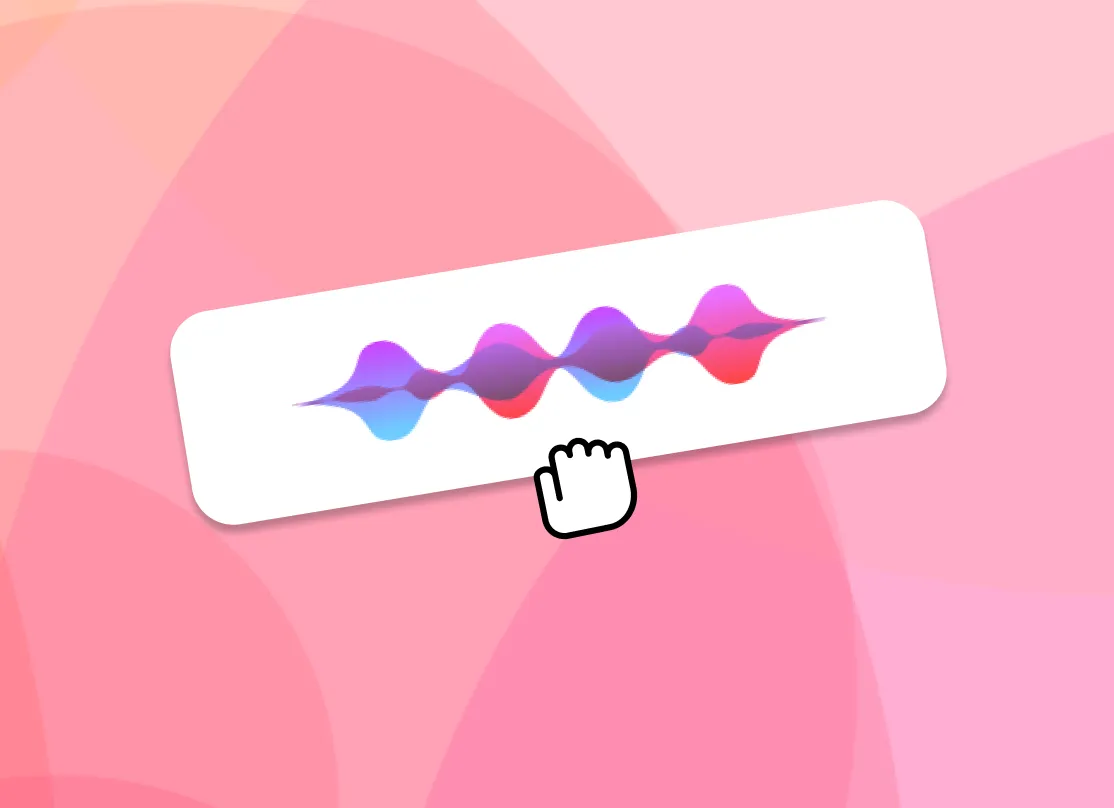
2. Add a visualizer
Choose a bar, wave, line or siri style, then set its color, size and position. Add a background image and your track title or logo to finish the look.
-
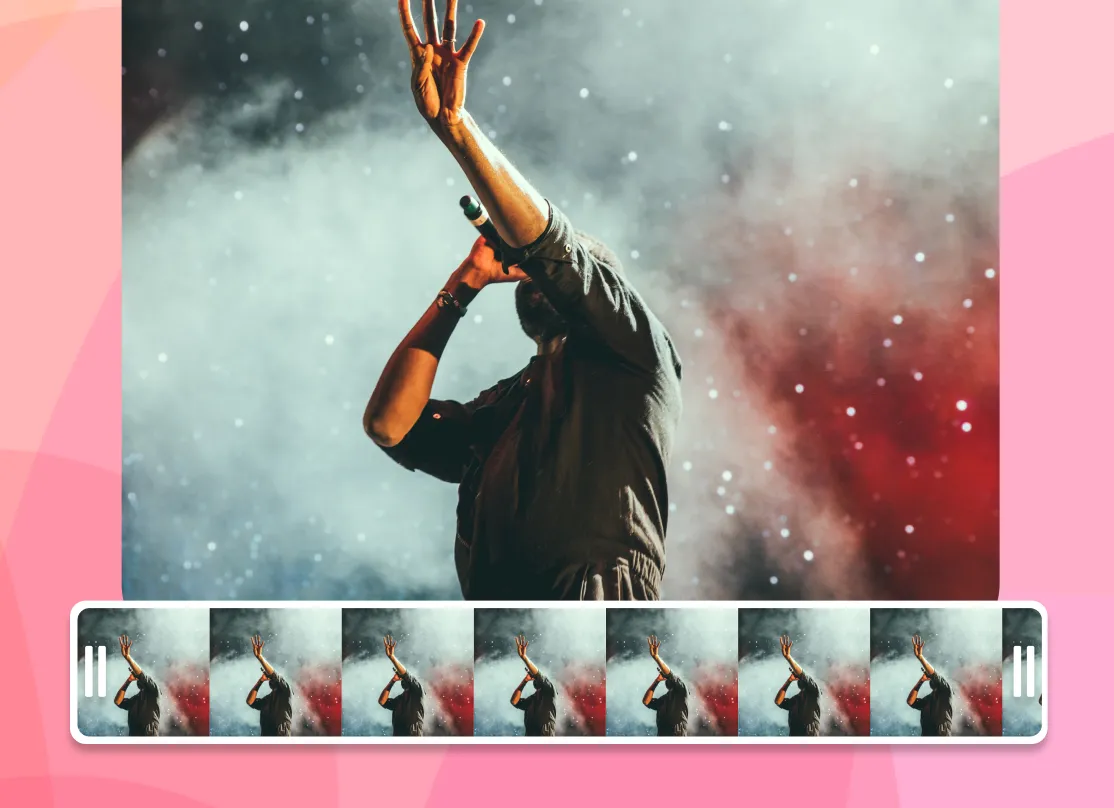
3. Export and upload
Download the MP4 with the animation rendered in, then upload it to YouTube Studio with a clear title and a custom thumbnail.
What creators say after trying EchoWave
Post your music to YouTube

Built for YouTube reach
YouTube is the second largest search engine in the world after Google, which makes it a strong home for music. A reactive YouTube music visualizer gives your track the motion the platform expects, helps hold watch time, and gives your channel a consistent look across every upload, all without filming anything.
Edit the whole video in one place
The visualizer is one tool inside a full editor. You can trim the audio, add a background, place titles and credits, layer a logo and tidy the timing, then export once. Doing the editing and the visualizer together means you avoid juggling separate apps and re-exports.

About the EchoWave team
EchoWave is a browser-based video and audio editor built by Lemon Vault LLC since 2018. The people who build the editor write these guides and test every step in the production app before publishing.
Frequently Asked Questions
Does YouTube have a built-in music visualizer?
No. YouTube does not generate a visualizer for uploads, and YouTube Music does not have a built-in one for your own tracks either. To get an animated visualizer on a video you upload, you make it first in a video editor like EchoWave and render the animation into the file.
How do I add a music visualizer to a YouTube video?
Import your audio into EchoWave, add a bar, wave, line or siri visualizer, adjust its color and position, then export an MP4. Upload that MP4 to YouTube Studio. The animation is baked into the video, so it plays for every viewer.
Is the YouTube music visualizer free?
Yes. You can build and export a visualizer for free with no credit card. Free exports include a small EchoWave watermark in a corner, which you can remove by upgrading to a paid plan.
Can I upload an MP3 to YouTube directly?
No, YouTube only accepts video files. You need to wrap the MP3 in a video first. A visualizer is the popular way to do this, or you can use our MP3 to YouTube tool for a simpler frame around the audio.
What size should a YouTube music visualizer be?
Use 16:9 at 1920x1080 for standard uploads on the main watch page. Use 9:16 at 1080x1920 for YouTube Shorts, and 1:1 if you also want to post the clip to Instagram feed.
What audio and video formats can I import?
You can bring in MP3, WAV, M4A and AAC audio, plus MP4, MOV and WebM for background video. If the browser cannot read a rarer file locally, EchoWave still uploads it for processing so the export goes ahead.
What format does the visualizer export in?
EchoWave exports MP4 with H.264 video, which is the format YouTube recommends. It uploads and transcodes quickly and plays on every YouTube client, from the web player to mobile apps and TVs.
Do I need to install software or sign up?
No installation is needed. The visualizer runs in your browser on Chrome, Edge, Firefox and Safari. You can start building right away, with an account only needed when you save or export.
How do I make a visualizer for my own music?
Open the editor, import your track, pick a visualizer style and customize its color, size and placement to match your cover art. Add a background and your artist name, then export. The animation follows the real frequencies in your audio.
Can I customize the visualizer colors and style?
Yes. You can change the visualizer type, color, size, thickness, opacity and position, layer more than one visualizer, and add a background image or video plus text and a logo so it matches your brand.
Will I get a copyright claim for the music?
If you upload someone else's track, YouTube's Content ID may place ads or restrict the video in some regions. Publishing your own original music avoids this and keeps you in full control of the upload.
Is my audio kept private?
Your file is loaded into the editor on your own device as you work rather than posted publicly. You decide where the finished video goes when you choose to upload it to YouTube.

Ready to make a YouTube visualizer? We have a free plan!
No credit card required, our free plan includes a small Echowave.io watermark.
Get Started →























































