How to Post Audio on Facebook (2026)
Facebook has no audio only post, so you turn your audio into a video and upload it. This guide covers every working method, free and in your browser, plus the copyright rules that keep your video from being muted. Convert your audio to a Facebook ready video with EchoWave.


How to Post Audio on Facebook (2026) Features
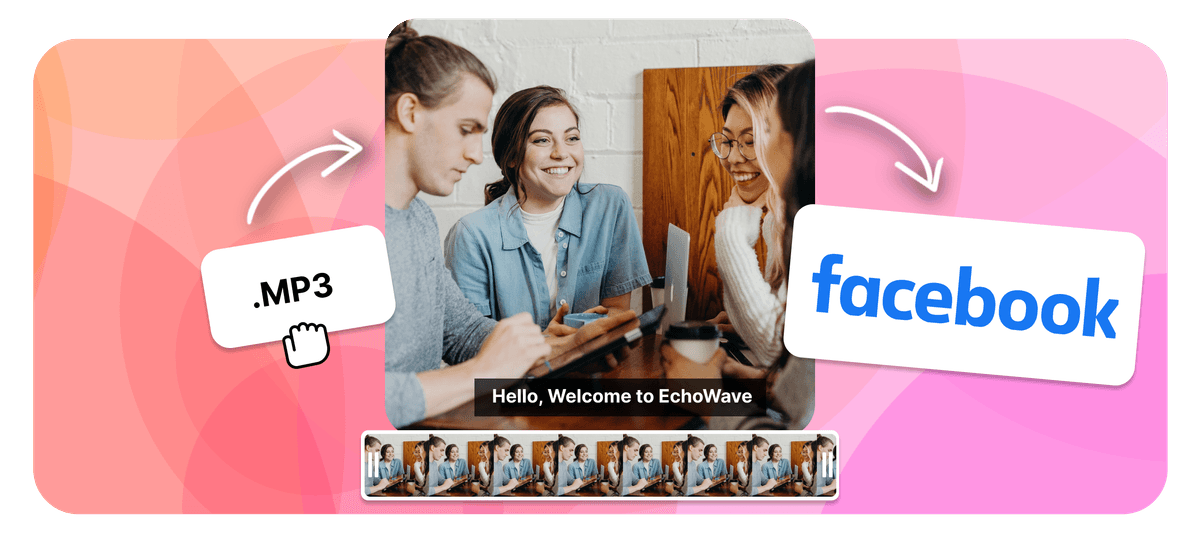
Can you post audio on Facebook? Not as a standalone audio file. Facebook has no audio only post type, so you cannot upload an MP3 or WAV straight to your feed. The reliable fix is to turn your audio into a video, either a waveform clip or a cover image with sound, and post it as a normal video. You can do this free in your browser with EchoWave's audio to video tool. You can also add a song with Facebook's music sticker, put audio in a Reel or Story, go Live, or share a link from SoundCloud or Spotify.
How to post audio on Facebook (quick answer):
- Convert your audio to a video (a waveform or an image) with EchoWave.
- Download the MP4.
- Upload it to Facebook as a normal video post.
Your own recordings, a voice memo, a podcast, or a song you made, are yours to post. Only third party copyrighted music causes problems, and the copyright section below covers how to avoid a mute or takedown.





Can you post audio directly on Facebook?
No. Facebook supports text, photo, and video posts, but it has no option to upload a standalone sound file. If you try to post an MP3 or WAV the way you would share a photo, there is no upload button for it. That is why every reliable way to post audio on Facebook falls into one of two groups: turn the audio into something Facebook does accept, which is a video, or use one of Facebook's built in music features. Both are covered below, and all of them are free.
The most common request is how to post an MP3 on Facebook. Since you cannot upload the MP3 itself, you convert it to an MP4 video first. The rest of this guide walks through that method and six more, so you can pick the one that fits your goal, whether that is a music release, a podcast clip, a voice recording, or a quick share to a group.
Method 1: Turn your audio into a video and post it
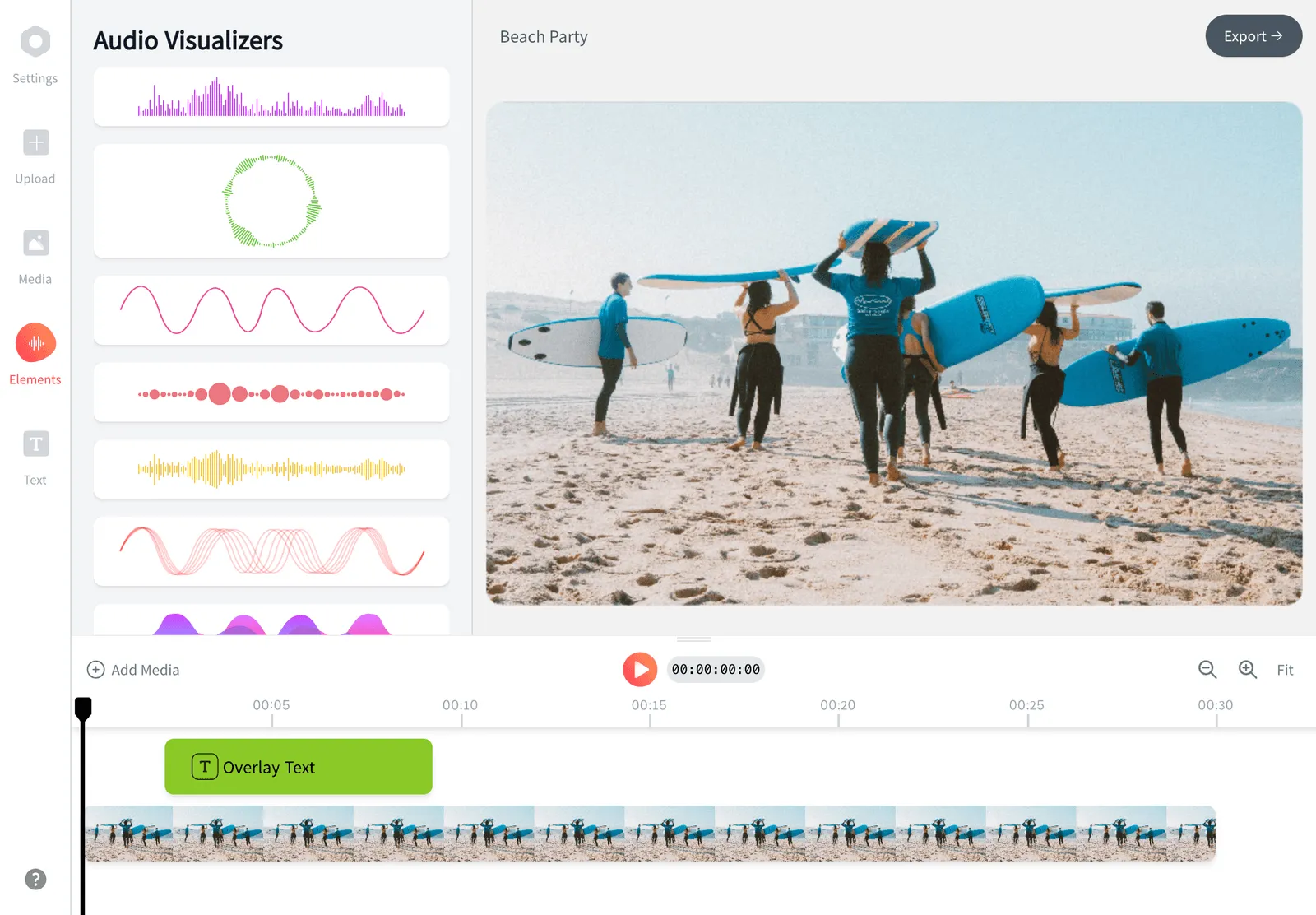
This is the method most people want, because a video plays right inside the Facebook feed and often autoplays as people scroll, which means the most reach. EchoWave turns your sound into a video in three steps, free and in your browser, no watermark and no account needed to start.
-
1. Upload your audio
Open EchoWave's audio to video tool and upload your file. It accepts MP3, WAV, M4A, AAC, FLAC, and more, so whatever recording you have will work.

-
2. Add a visual
Pick a waveform animation that moves with the sound, or add a still cover image such as podcast art or an album cover. Add a title, captions, or your logo so the clip is clear even with the sound off, which is how most people scroll Facebook.

-
3. Export and post to Facebook
Export the finished MP4, then upload it to Facebook the same way you post any video, on your profile, a Page, a group, or as an ad. The audio plays for everyone who watches.

What creators say after trying EchoWave
Why the video method works best
Best size and length for Facebook
For feed and mobile, a square clip (1:1) or a vertical clip (4:5 or 9:16) fills the most screen. Keep it to about 60 to 90 seconds for the best engagement, though Facebook allows videos up to 240 minutes. Export as MP4 with H.264 video and AAC audio, which is what Facebook recommends and what EchoWave produces by default. Because most people watch with the sound off at first, burn in a title or captions so the post still lands silently.
Method 2: Add music to a post with the music sticker
Facebook lets you attach a song to a normal post with the music sticker. Start a new post in the Facebook mobile app, tap the sticker icon, choose the music note, search for a track, and pick the part you want, up to about 30 seconds. It works on text and photo posts, and the clip plays for people who view the post. Two things to know: this feature is in the Facebook mobile app only, and it adds songs from Facebook's licensed catalog, not your own audio file. To share your own recording, use Method 1.
Method 3: Post audio in a Facebook Reel
Reels are short vertical videos, up to 90 seconds, and a strong way to get audio discovered. In the app, create a Reel, tap the audio icon, then either search Facebook's music library or add your own original audio. Trim the track to the section you want and record or upload your visual. Public Reels also let other people reuse your original audio, which can spread a sound further.
Method 4: Add audio to a Facebook Story
A Story suits short, time limited audio. Create a Story, add a photo or video, tap the music option, choose a track, and adjust which part plays. Each Story segment runs up to about 60 seconds and disappears after 24 hours, so use this for quick shares rather than a permanent post.
Method 5: Go Live with audio
If your audio is live, such as a radio show, a DJ set, or a talk, start a Facebook Live video and the sound streams along with it. Live is for real time audio, not for sharing a file you already recorded, so for a finished track or episode use Method 1 instead.
Method 6: Share a link from SoundCloud, Spotify, or Bandcamp
If your audio already lives on a streaming service, paste the track or playlist link into a Facebook post. Facebook turns the link into a preview card that people can click to play. This suits musicians and podcasters who publish on SoundCloud, Spotify, Bandcamp, or a podcast host. The audio opens in or streams from that service rather than playing natively in the feed, so reach is lower than a video, but it is quick and keeps your listening stats on the host.
Method 7: Upload to cloud storage and share the link
For a raw file with no conversion, upload your MP3 or WAV to Google Drive, Dropbox, or iCloud, create a shareable link, and paste that link into a post, a group, or Messenger. This is the fastest way to get a sound file to someone, but the link opens as a download or a preview rather than playing in the feed, so engagement is the lowest of any method. It is best for private or group sharing.
How to post a voice recording on Facebook
A voice memo follows the same rules as any audio. For a public post, convert the recording to a video with Method 1 so it plays in the feed. To send a voice recording to one person, open a Messenger chat and record a voice message or attach the file. If you recorded the memo on a phone, you can also import it into EchoWave and add a simple background so it looks intentional in the feed.
Audio and video formats Facebook accepts
You cannot upload audio formats (MP3, WAV, M4A, AAC, FLAC, OGG) on their own, but you can convert any of them to video. For the upload, Facebook works best with MP4 using H.264 video and AAC audio, and it also accepts MOV. EchoWave reads all of the common audio formats and exports a Facebook ready MP4, so you do not need to think about codecs.
Mobile vs desktop: what works where
This trips a lot of people up. Facebook's native music features, meaning the music sticker, Reels audio, and Stories music, are in the mobile app only. The methods that work on both a computer and a phone are converting audio to a video with EchoWave and sharing a streaming or cloud link. So if you are on a desktop and want to post your own audio, Method 1 is the route.
Will Facebook mute your audio? Copyright rules explained
This is the part that trips up musicians and Page owners, so it is worth getting right. When you upload a video, Facebook scans its audio against a large rights database. If it finds commercial music you do not own or have a licence for, Facebook can mute that section, block the video in some countries, or take it down. Repeat matches can cost a Page its monetization and, after enough strikes, its reach. Even a short clip of a well known song can trigger a match.
The simple rule: post audio you own or have the right to use. These are safe to turn into a video and post:
- Your own recordings such as your voice, a podcast, an interview, a sermon, or a lecture.
- Music you created or own the rights to, including your own tracks or music you hold a licence for.
- Royalty-free or Creative Commons audio, used within its licence terms.
- Tracks from Facebook's own libraries (the music sticker, Reels audio, and the Meta Sound Collection), which are pre-cleared for use on Facebook.
What gets flagged is third party commercial music, such as a chart song, a film score, or a track you found online, added to a video you upload. Two things creators miss. First, Facebook's built in music is cleared for ordinary personal posts but is not all cleared for business Pages, ads, or monetized video, so if you run a Page that earns, stick to Meta Sound Collection tracks marked for commercial use. Second, EchoWave never adds music of its own, it visualizes the exact audio you upload, so whether a post is cleared depends on the rights to your file, not the tool. If the recording is your own voice or your own song, you are in the clear.
Methods compared
| Method | Plays in the feed? | Autoplays with sound? | Best for | Desktop or mobile | Cost |
|---|---|---|---|---|---|
| Audio to video (EchoWave) | Yes | Yes | Music, podcasts, voiceovers, most reach | Both | Free |
| Music sticker on a post | Yes | Yes | Adding a licensed song to a post | Mobile only | Free |
| Reel with audio | Yes | Yes | Short vertical clips and discovery | Mobile only | Free |
| Story with music | Yes, for 24 hours | Yes | Quick, temporary shares | Mobile only | Free |
| Facebook Live | Yes, while live | Yes | Live audio: shows, DJ sets, talks | Both | Free |
| SoundCloud or Spotify link | No, preview card | No | Musicians and podcasters | Both | Free |
| Cloud link (Drive, Dropbox) | No | No | Private or group file sharing | Both | Free |
Troubleshooting
My Facebook video has no sound. Check that the clip was not muted before upload and that it exported with an AAC audio track. Re-exporting as MP4 with H.264 and AAC from EchoWave fixes most silent video problems.
My video was muted or removed for copyright. Facebook detected commercial music it has no licence for. Swap the track for your own audio, a royalty-free song, or a track from Facebook's Sound Collection, then re-upload. The copyright section above explains which audio is safe.
I do not see the music sticker. It rolls out gradually and is mobile only, so update the Facebook app and check again later. If it still is not there, use Method 1 to add your own audio instead.
The audio is out of sync. Re-export the video at a standard frame rate and upload the fresh file.
My MP3 will not upload. It never will directly, because Facebook has no audio post. Convert it to a video first and the upload works.
Sources & further reading
- Add music to your story on Facebook, Facebook Help Center
- Add music to your text post on Facebook, Facebook Help Center
- Facebook Music Guidelines, Meta

About the EchoWave team
EchoWave is a browser-based video and audio editor built by Lemon Vault LLC since 2018. The people who build the editor write these guides and test every step in the production app before publishing.
Frequently Asked Questions
How do I add audio to a Facebook post?
Facebook has no audio only post, so you add audio by turning it into a video and uploading that, or by using the music sticker in the mobile app. To share your own recording, convert it to an MP4 with EchoWave and post it as a video.
Can I upload my own audio to Facebook?
Not as a standalone file. The music sticker only adds songs from Facebook's catalog. To post your own MP3 or recording, convert it to a video first, then upload the video.
Can I upload an MP3 directly to Facebook?
No. There is no MP3 upload option on Facebook. Convert the MP3 to a video with a waveform or cover image, then upload the video.
How do I post a song on Facebook?
If it is your own song, turn it into a video with a waveform or cover art in EchoWave and post the MP4 so it plays in the feed. If you just want to attach a licensed track to a post, use the music sticker in the mobile app. Avoid uploading a video with someone else's commercial song, as Facebook may mute or remove it.
How do I post voice recordings on Facebook?
For a public post, convert the voice recording to a video with EchoWave so it plays in the feed. To send it privately, record or attach it as a voice message in Messenger.
What is the best way to share podcast audio on Facebook?
Turn the episode or a short clip into a video with a waveform and your cover art, then post it as a video. It plays in the feed, autoplays as people scroll, and you can add captions for sound off viewing.
Will Facebook mute my video if it has copyrighted music?
It can. Facebook scans uploaded audio and may mute, block, or remove a video that contains commercial music you do not have the rights to. Your own voice, your own music, royalty-free audio, and tracks from Facebook's own libraries are safe to post.
Can I post audio on Facebook without making a video?
Only indirectly. You can attach a licensed song with the music sticker, or paste a SoundCloud, Spotify, or cloud storage link. To post your own audio so it plays in the feed, you still need to convert it to a video.
What type of audio file can be uploaded to Facebook?
None on their own. Facebook accepts video rather than audio, so files like MP3, WAV, M4A, and FLAC need to be converted to an MP4 video before you can post them.
Do I have to convert audio to video to post it?
To post it in your feed so it plays for everyone, yes. The alternative is to share a link from SoundCloud, Spotify, or cloud storage, which opens off Facebook and gets less reach.
How long can a Facebook video be?
Facebook allows videos up to 240 minutes, but 60 to 90 seconds works best for engagement in the feed. Reels run up to 90 seconds and Story segments up to about 60 seconds.
What size should a Facebook audio video be?
A square (1:1) or vertical (4:5 or 9:16) clip fills the most screen on mobile, where most people watch. Export as MP4 with H.264 video and AAC audio, which EchoWave does by default.
Why is there no sound on my Facebook video?
Usually the file was muted on upload or exported without an AAC audio track. Re-export as MP4 with H.264 and AAC, then upload again.
Can you add music to a Facebook post on a computer?
The music sticker is mobile only, so on a desktop the way to add your own audio is to convert it to a video with EchoWave and upload that video.
Ready to post your audio on Facebook? Free, in your browser
Turn your MP3 or recording into a Facebook ready video in minutes.
Convert Audio to Video