 1440 × 1080
More ratios and a custom ratio
Pick 4:3, 3:4, 5:4, 2:3 for Pinterest, 2:1, or 21:9 for a cinema look. Or type any width-to-height pair, such as 3:1 for a banner, and the frame locks to it.
Custom:
You get1440 × 1080
Crop a video to any shape.
That file did not work
Free. No sign-up. No watermark.
4.9 of 5 from 336 reviews
No video handy? Try a sample
Try it yourself
Crop a video online: drag the frame or tap 9:16, 1:1, 4:5 or 16:9, and the button shows the exact size you will get. Works with MP4, MOV and most formats. Free, no sign-up, no watermark.
To crop a video online for free, upload it to the cropper, drag the frame over the part you want to keep or tap a shape (9:16, 1:1, 4:5, 16:9 or Free), then press the button, which names the output size, for example Crop to 608 x 1080. Download the MP4. Cropping cuts the edges off the picture. To change the size of the whole frame without losing anything, use the video resizer instead.
Teams that use EchoWave





Three steps in the cropper:
Click or tap the upload box and pick a clip. Most phone, camera and screen-recorder files are fine, including MP4, MOV and AVI. If your browser cannot preview a format, EchoWave converts it to MP4 first so you can still crop it.
Tap Original, 9:16, 1:1, 4:5, 16:9 or Free. Drag inside the frame to move it, drag a corner to resize it, and press Play to check the shot. Turn on Grid, or Safe zones for 9:16, while you line it up.
Press the button, which shows the size you will get, for example Crop to 1080 x 1080. Wait for the file to finish, then download it. There is no watermark and no sign-up.
Each platform expects a frame shape, and posting the wrong one gets you black bars or an automatic zoom you did not choose. Tap the matching shape and the crop frame locks to that ratio however far you drag it.
| Shape | Where it goes | Target size | What a 1920 x 1080 clip keeps |
|---|---|---|---|
| 9:16 | TikTok, Instagram Reels, YouTube Shorts | 1080 x 1920 | 608 x 1080 |
| 1:1 | Instagram post, Facebook feed | 1080 x 1080 | 1080 x 1080 |
| 4:5 | Instagram feed portrait | 1080 x 1350 | 864 x 1080 |
| 16:9 | YouTube, X, LinkedIn | 1920 x 1080 | up to 1920 x 1080 |
The last column is the catch. A vertical crop of a widescreen clip keeps a narrow strip, so a 1080p source gives you a 608-pixel-wide video. If you know a clip will end up vertical, record it in 4K: a 3840 x 2160 source keeps roughly 1215 x 2160, which is more than the 1080 x 1920 that TikTok, Reels and Shorts display.
Five shape buttons cover most posts. Open More shapes and exact size when you need something else.
1440 × 1080Pick 4:3, 3:4, 5:4, 2:3 for Pinterest, 2:1, or 21:9 for a cinema look. Or type any width-to-height pair, such as 3:1 for a banner, and the frame locks to it.
You get1440 × 1080
Turn on Grid to line up the shot, or Safe zones on 9:16 to see where TikTok, Reels and Shorts put the username, caption and buttons. Press Play to check the framing before you crop.
MP4 from the web and Android phones, MOV from iPhone, iPad and QuickTime, WebM from browsers and screen recorders, plus MKV, AVI and M4V. For more on files from different sources, see crop MP4.
Tap Original, 9:16, 1:1, 4:5 or 16:9 and the frame keeps that ratio while you drag any handle. A ratio that is slightly off gets padded with bars or zoomed once you post it, so use a preset whenever the frame is fixed.
Free lets each edge move on its own. Use it when what is inside the frame matters more than its shape. A good habit: crop freehand to find the shot, then tap the platform's preset and nudge the frame back over your subject.
Type X, Y, Width and Height to place the crop to the pixel, for example a 1280 x 720 window out of a full-screen recording. A 3 x 3 pad jumps the frame to a corner, an edge or the center.
The button names the final size before you start, for example Crop to 608 x 1080, so there are no surprises in the download. Sizes are rounded to even numbers, because most video encoders and players need even dimensions.
Whatever goes in, an MP4 comes out, which plays on every major platform and phone. The cropper is free, needs no sign-up and adds no watermark to the download.
Turn a 16:9 YouTube upload into a 9:16 Short without re-editing it. Slide the frame until the subject sits in the middle strip, and keep faces and on-screen text inside the Safe zones, clear of the caption and buttons.
A square keeps the full height of a widescreen clip, so it is the gentlest way out of 16:9. It suits logos, product shots, Instagram posts, the Facebook feed and anything that sits in a grid.
4:5 is taller than a square without going fully vertical, so it fills more of a phone screen in the Instagram feed while keeping more of a wide shot than 9:16.
Cut away a messy background, a webcam border, a logo another app burned in, or black bars baked into a downloaded or screen-recorded clip.
Zoom in on a speaker so they fill more of the frame, or trim the dead space above their head. On a clip that is already 16:9, cropping means zooming in, so keep the frame as large as the shot allows.
Keep only the window or region you want to show. Draw it with Free, or type the exact pixels when the crop has to match a known size.
To turn a landscape clip into a vertical one, tap 9:16 and drag the frame sideways until the subject sits inside it. Going from 16:9 to 9:16 keeps about a third of the width, so plan the crop around the one thing that matters. Talking heads, product demos and single-subject shots work well. A wide shot with action on both sides will lose one of them.
If the subject moves around, a single fixed crop will not follow it. For podcasts, interviews and other talking video, auto crop video finds the speaker and moves the frame with them.
Upload the clip to the EchoWave cropper, drag the frame over the part you want to keep or tap a shape such as 9:16 or 1:1, then press the Crop button and download the MP4. It costs nothing, needs no account and adds no watermark. The button shows the exact output size before you start, so you know what you will get.
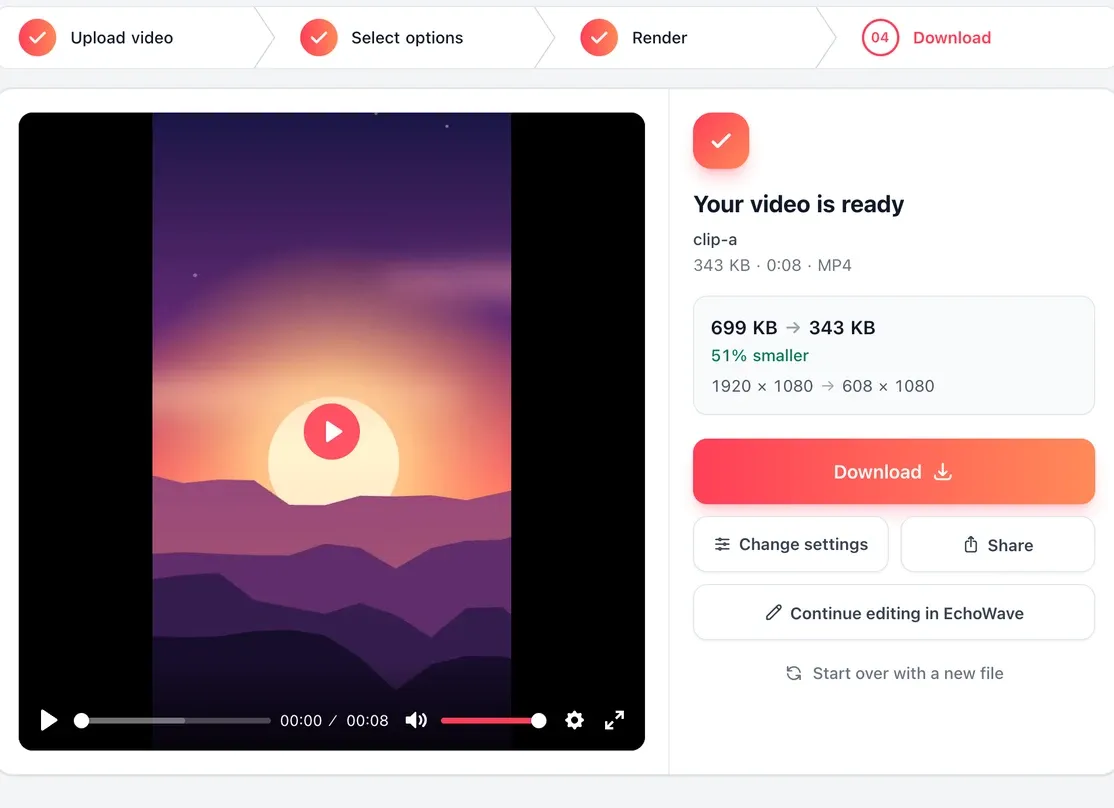
Tap the 9:16 shape, drag the frame sideways until your subject sits inside it, and press Crop. Switch on Safe zones to see where TikTok, Reels and Shorts place the caption and buttons, and keep faces and text clear of them. The full-screen target is 1080 x 1920; from a 1080p widescreen clip you keep 608 x 1080.
Tap the 1:1 shape and the frame snaps to a perfect square that you can move and resize. From a 1920 x 1080 clip a square keeps 1080 x 1080, the full height of the original, which makes it the least destructive way to leave widescreen. Square suits Instagram posts, the Facebook feed and product clips.
Yes. Open More shapes and exact size and type the X and Y position plus the Width and Height in pixels. You can also enter a custom ratio such as 3:1, or use the 3 x 3 pad to snap the frame to a corner, edge or the center. Sizes are rounded to even numbers, which video players need.
Cropping cuts away the edges, so you keep only part of the picture and the shape changes. Resizing scales the whole frame to new dimensions and can fill any gap with bars or a blurred copy, so nothing is cut. Use the resize tool when the full picture has to stay in shot.
Cropping keeps sharpness but lowers resolution. The pixels you keep are untouched, but there are fewer of them: a 1920 x 1080 clip cropped to 9:16 becomes 608 x 1080, while a 4K source keeps a vertical crop above full HD. The file usually gets smaller for the same reason. Start from the best copy you have, crop once instead of re-cropping an export, and if the file is still too big, crop first and then use the video compressor.
MP4, MOV, WebM, MKV, AVI, M4V and most other video files that phones, cameras and screen recorders produce. If your browser cannot preview a file, EchoWave converts it to MP4 first so you can still frame the crop. The cropped file downloads as an MP4, which plays on every major platform and device.
No. The cropper is a free single-purpose tool: no sign-up, no watermark, and the download is a clean MP4. If you later open the clip in EchoWave's full editor to add text or music, that editor's free plan exports at 720p with a small badge, which a paid plan removes.
Open the cropper in Safari or Chrome on your phone, pick the clip from your camera roll, drag the frame with your finger or tap a shape, then crop and download. It works the same on Windows, Mac and Chromebook, with nothing to install. The iPhone Photos app can crop too, but without the exact 9:16, 4:5 and 16:9 shapes or the output size. Fix a sideways clip with rotate video and cut it to length with the video trimmer.
Yes, if you have the video file and the right to use it. EchoWave cannot fetch a video from a YouTube link, so upload the file itself, for example your own export from your editing app. Then crop it like any other clip: 9:16 for a Short, or a tighter 16:9 to cut black bars.
Yes, by opening the cropped MP4 in EchoWave's full editor. Text goes on its own layer with full styling, as the add text to video guide shows, and music or a voiceover goes on an audio track. You can also generate captions from the speech, apply a color look and put transitions between clips. Add the cropped clip first and the editor takes its shape from it. Exports from the editor on the free plan are 720p with a small EchoWave badge, and a paid plan takes the badge away.
Rotation is a separate tool. If the clip is sideways or upside down, turn it upright first with rotate video, download the result, then upload it to the cropper. In that order, the 9:16, 1:1, 4:5 and 16:9 shapes and the size on the Crop button describe the picture the right way up. A mirrored clip, where text reads backwards, needs the flip tool rather than a rotation.
No. The EchoWave video cropper works in a web browser on Windows, Mac, Chromebook, iPhone and Android, so there is no software to download or install. Upload the clip, pick a shape or type exact pixels, and download the cropped MP4 with no watermark. Desktop video editors can crop as well, but you install them first and build a project before you can export.
No. The video cropper has no file size limit, on the free plan or any paid plan, so a 2 GB screen recording or a long video crops the same way as a short clip. The uploader accepts single files up to 50 GB. A bigger file takes longer to upload and crop, so a long recording needs some patience before the download is ready.
Loading the reviews
Free, no sign-up
No watermark on the download.