How to Post Your Podcast on YouTube (2026)
You cannot upload a raw MP3 to YouTube, so you turn your podcast audio into a video and post that. This guide covers both working paths, free and in your browser. Convert your podcast to a YouTube ready video with EchoWave.

How to Post Your Podcast on YouTube (2026) Features
Can you upload a podcast to YouTube? Yes, but not as a raw audio file. YouTube has no audio only upload, so you either turn your episode into a video and upload it like any other video, or you submit your podcast RSS feed to YouTube Music and let Google build the videos for you. Both are free.
The fast answer, how to post your podcast on YouTube:
- Convert your audio episode into a video, a waveform or your cover art with the title on screen, using EchoWave's podcast to video tool.
- Download the MP4.
- Upload it to your channel in YouTube Studio, then add it to a podcast playlist.
That is the method most creators want because the video sits on your main channel, shows up in search and Suggested, and can earn ad revenue. The RSS route is faster to set up but gives you a plain static image and ships to YouTube Music only. The rest of this guide walks through both in full, with the exact specs, the rules YouTube enforces, and the mistakes that get episodes rejected.





Can you upload a podcast to YouTube directly?
Not as an audio file. YouTube accepts video, so an MP3 or WAV has nothing to attach to. There are two supported ways to put a podcast on YouTube, and which one you pick depends on what you want out of it.
Path 1, upload audio as a video (recommended for most people). You add a visual to your audio, a moving waveform or a still cover image, export an MP4, and upload it to your channel. This is the path that earns the most reach. The video lives on your real channel, it can appear in YouTube search and Suggested, you choose a custom thumbnail, you can add chapters and captions, and once you qualify it can be monetized.
Path 2, submit your RSS feed to YouTube Music. If you already publish through a podcast host (Buzzsprout, RSS.com, Captivate, Podbean, and similar), you give YouTube your feed URL and it builds a static image video for every episode automatically. It is the least effort, but the result is a single unmoving cover image, the episodes go to YouTube Music rather than your main video channel, and the RSS tool is available in select countries only.
Most creators want Path 1, because audio with a real visual performs far better than a frozen square. Around six in ten podcast uploads on YouTube are audio paired with a static image or an audiogram rather than full studio video, and YouTube itself encourages this. The two paths are not mutually exclusive either: plenty of shows post a polished audiogram to the main channel and also pipe the RSS feed to YouTube Music.
Path 1: Turn your podcast into a video and upload it
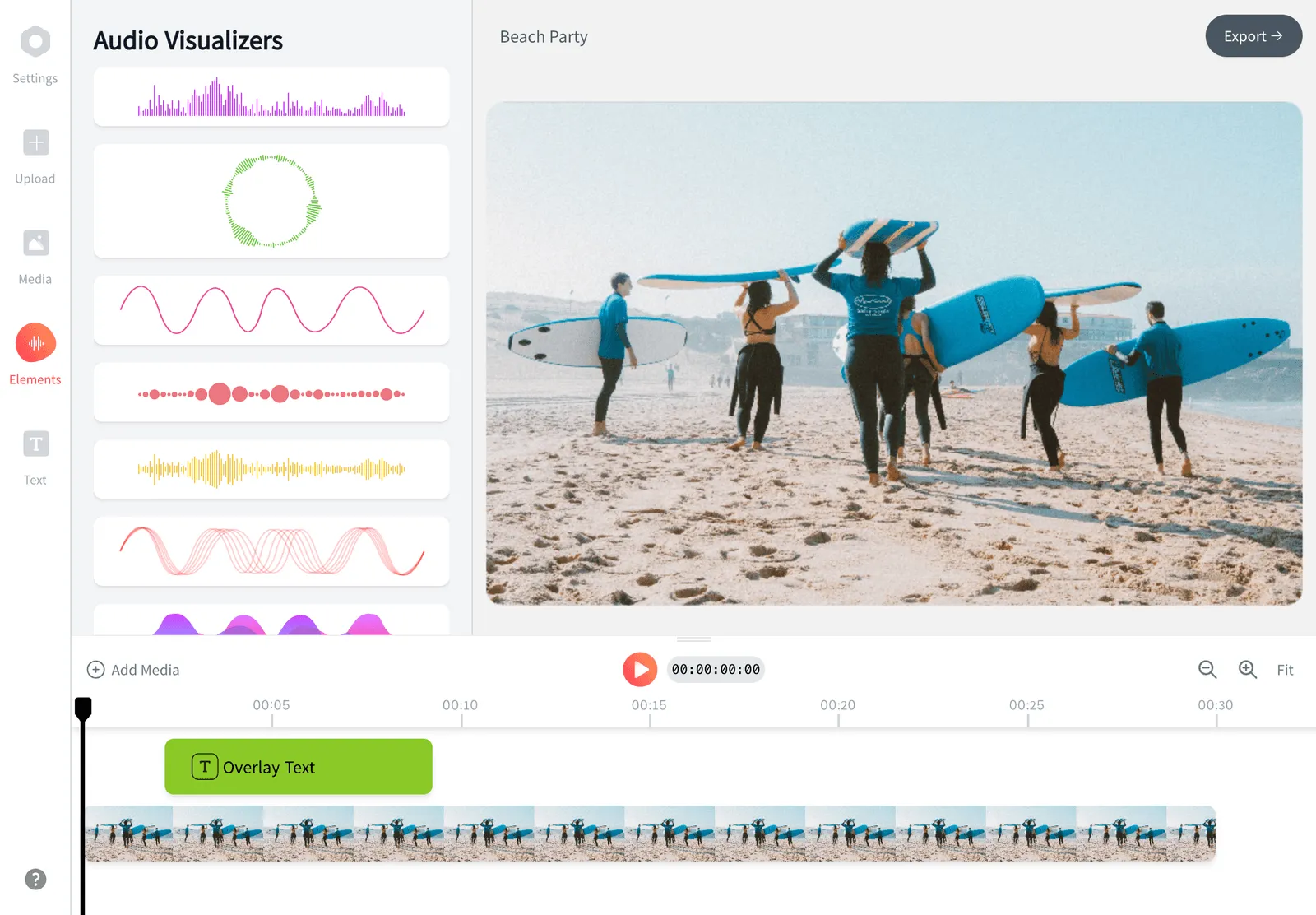
Convert your episode into a YouTube video with EchoWave in three steps, free and in your browser, then upload the MP4 to your channel.
-
1. Upload your audio
Open EchoWave's audio to video tool and drop in your episode. It reads MP3, WAV, M4A, AAC, FLAC, and more, so whatever you recorded will work, including a full length, one hour episode.
-
2. Add a visual and your branding
Pick a waveform animation that moves with the sound, or set a still cover image such as your show art. Add the episode title, guest name, captions, and your logo so the clip reads clearly even on mute.
-
3. Export and upload to YouTube
Export a 16:9 MP4, then upload it in YouTube Studio. Add it to a podcast playlist, set a custom thumbnail, write the description with timestamps, and publish.

What our creator community is saying
Why the video method wins
Best video settings for a YouTube podcast
YouTube is built for 16:9, so export your audiogram or cover video at 1920 by 1080 (1080p) in a 16:9 frame. Use MP4 with H.264 video and AAC audio, which is what YouTube recommends and what EchoWave produces by default. Aim for 48 kHz audio at a steady level so the episode is loud enough without clipping. There is no length limit that matters for podcasts: verified channels can upload files up to 12 hours or 256 GB, far beyond any episode.
A few details that lift performance:
- Custom thumbnail. Upload a 1280 by 720 image (16:9, under 2 MB, JPG or PNG). This is the single biggest driver of clicks. Put the guest, the episode topic, and a short hook on it.
- Chapters. Add timestamps in the description, starting at
00:00, with at least three chapters. YouTube turns them into a clickable chapter bar that raises watch time. - Captions. Upload a transcript or let YouTube auto caption, then correct it. Captions help accessibility, search, and the large share of viewers who watch on mute.
- Title and description. Lead with the topic and the guest, not just "Episode 47". Repeat the core keyword naturally and link your show's other platforms.
How to upload a podcast to YouTube, step by step
Once you have the MP4 from EchoWave, here is the full upload flow in YouTube Studio.
- Go to studio.youtube.com and sign in to your channel.
- Click Create in the top right, then Upload videos, and select your MP4.
- Add the title, description with chapter timestamps, and tags. Set the custom thumbnail.
- Set Audience (whether the video is made for kids) and language, and add captions.
- Choose visibility: Public, Unlisted, or Scheduled, then publish.
- To group episodes, click Create > New podcast to make a podcast playlist, or open an existing playlist's settings and mark it Set as podcast. Add each episode video to that playlist so YouTube treats your show as a podcast.
That is the whole loop. For every new episode you convert the audio to a video, upload it, and drop it into the podcast playlist.
Path 2: Submit your podcast RSS feed to YouTube Music
If your show already lives on a podcast host with an RSS feed, you can let YouTube generate the episode videos automatically. This route delivers to YouTube Music, not your main channel, and produces a static image video built from your show art.
- In YouTube Studio, click Create, then New podcast.
- Choose Submit an RSS feed and accept the RSS ingestion terms.
- Paste your feed URL. YouTube emails a verification code to the address listed in your feed's
<email>field. Enter the code to prove you own the show. - Choose which episodes to import: all of them, everything from a certain date, or new episodes only.
- Set visibility and save. YouTube creates a static image video for each episode and uploads them over the next few days. New episodes you publish later sync automatically.
Requirements and rules for the RSS route:
- Each feed item must point to an audio file (such as an MP3). YouTube does not accept video files through the RSS tool.
- Episode titles and descriptions must use valid characters. Strip out
<,>, and any raw HTML, or the import fails. - Provide square cover art at 3000 by 3000 px (PNG or JPG) in your feed. It is reused as the static frame, so it needs to look sharp at large sizes.
- No dynamically inserted ads. Podcast content delivered to YouTube cannot contain ad breaks. Host read sponsorships and endorsements are allowed, but you must disclose them as paid promotion.
- RSS ingestion is available in select countries only. If you do not see the option, your region is not supported yet, so use Path 1 instead.
- YouTube will not back fill subscriber notifications for old episodes, update show details when your RSS changes, or re-import a re-uploaded audio file. Detail changes have to be made manually in YouTube Studio.
Which method should you use?
| Audio to video (EchoWave) | RSS feed to YouTube Music | |
|---|---|---|
| Where it lands | Your main YouTube channel | YouTube Music |
| Visual | Waveform or branded cover image, captions, logo | Single static cover image |
| Custom thumbnail | Yes | No |
| Chapters and captions | Yes | No |
| Appears in YouTube search and Suggested | Yes | Limited |
| Counts toward monetization watch hours | Yes | No |
| Setup effort | Three steps per episode | One time feed submit, then automatic |
| Country availability | Anywhere | Select countries only |
| Cost | Free | Free |
If growth, discovery, and ad revenue matter, convert your audio to a video. If you only want your back catalog listed on YouTube Music with minimal effort, submit the RSS feed. Many shows do both.
Do you need video to put a podcast on YouTube?
No. A camera is optional. The majority of podcasts on YouTube are audio with a static image or an audiogram, not full studio video, and that approach is officially encouraged. A waveform that pulses with the sound, your cover art, the episode title, and on screen captions give viewers something to watch and tell the algorithm your video is engaging, all without filming anything. If you do have camera footage, upload it directly; if you do not, an audiogram is the right call.
Audio only vs full video podcast
Filming a video podcast can lift reach, but it is far more work: cameras, lighting, framing, and a heavier edit. An audiogram captures most of the upside for a fraction of the effort. A practical middle ground is to publish audiogram episodes consistently and cut a few short, punchy clips per episode as YouTube Shorts to pull new viewers toward the full episode. Consistency beats production value: a steady weekly audiogram outperforms an occasional polished video.
Common reasons a podcast upload gets rejected or underperforms
- Trying to upload the MP3 itself. YouTube has no audio upload. Convert to MP4 first.
- Ad breaks in an RSS submitted episode. Dynamic ads are not allowed on the RSS route. Remove them or use Path 1.
- A frozen, text heavy thumbnail. A static cover with the episode number does little. Make a 1280 by 720 thumbnail with a face and a hook.
- No chapters or captions. These quietly raise watch time and searchability; skipping them leaves reach on the table.
- HTML or angle brackets in episode titles. The RSS importer rejects invalid characters.
- Vertical or square export for the main channel. YouTube's player is 16:9, so a square clip leaves black bars. Export 16:9 for the channel and save vertical for Shorts.
Sources & further reading
- Deliver podcasts using an RSS feed, YouTube Help
- Distribute podcasts on YouTube, YouTube Help
- YouTube Partner Program overview & eligibility, YouTube Help
- Add custom thumbnails on YouTube, YouTube Help

About the EchoWave team
EchoWave is a browser-based video and audio editor built by Lemon Vault LLC since 2018. The people who build the editor write these guides and test every step in the production app before publishing.
Frequently Asked Questions
Can you upload a podcast to YouTube?
Yes, but not as a raw audio file. YouTube only accepts video, so you either turn your episode into a video and upload it to your channel, or submit your podcast RSS feed to YouTube Music and let YouTube build a static image video for each episode. Both are free.
How do I post my podcast on YouTube without video?
Convert the audio into a video with EchoWave by adding a waveform or your cover art plus the episode title and captions, export the MP4, and upload it as a normal video. No camera is needed, and this audiogram approach is the most common way podcasts appear on YouTube.
Can I upload an MP3 directly to YouTube?
No. There is no MP3 or audio upload option on YouTube. Convert the MP3 to an MP4 video first, using a waveform or a cover image, then upload the video to your channel.
What is the difference between the RSS method and uploading a video?
The RSS feed method sends static image videos to YouTube Music automatically and needs almost no work, but you get no custom thumbnail, chapters, or main channel placement. Uploading a converted video puts the episode on your real channel where it can rank in search, earn watch hours, and be monetized.
Do I need a podcast host or RSS feed to put a podcast on YouTube?
Not for the video method. If you convert your audio to a video and upload it directly, no RSS feed is required. You only need a feed for the automatic YouTube Music route, which pulls episodes from your existing podcast host.
What size and format should a YouTube podcast video be?
Export 16:9 at 1920 by 1080 as an MP4 with H.264 video and AAC audio at 48 kHz. Use a 1280 by 720 custom thumbnail. For the RSS route, provide square cover art at 3000 by 3000 px in your feed.
Can I monetize my podcast on YouTube?
Yes, once your channel joins the YouTube Partner Program, which requires at least 1,000 subscribers and 4,000 valid public watch hours in the past 12 months. Videos uploaded to your main channel count toward those hours; RSS submitted YouTube Music episodes do not.
Can my podcast on YouTube contain ads?
Episodes submitted through the RSS tool cannot contain dynamically inserted ad breaks. Host read sponsorships and endorsements are allowed, but you must disclose them as paid promotion. Videos you upload directly follow normal YouTube monetization rules.
How long can a YouTube podcast episode be?
There is effectively no podcast length limit. Verified channels can upload files up to 12 hours or 256 GB, which is far longer than any episode. The audio to video tool handles full length episodes, including those over an hour.
Why does the RSS podcast option not show up for me?
YouTube's RSS ingestion is available in select countries only. If you do not see Submit an RSS feed in YouTube Studio, your region is not supported yet. Use the audio to video method, which works anywhere.
How do I create a podcast playlist on YouTube?
In YouTube Studio, click Create then New podcast, or open an existing playlist's settings and turn on Set as podcast. Add each episode video to that playlist so YouTube recognizes your channel as a podcast.
What is the best way to post a podcast on YouTube for growth?
Convert each episode to a 16:9 video with a moving waveform, your show art, the episode title, and captions, then upload it with a strong custom thumbnail, chapter timestamps, and a keyword led title. Cut a few short clips as Shorts to feed new viewers toward the full episode.
Ready to post your podcast on YouTube? Free, in your browser
Turn your episode into a YouTube ready video with a waveform, cover art, and captions in minutes. No credit card required, the free plan adds a small EchoWave watermark.
Convert Podcast to Video →