Podcast to Video Converter
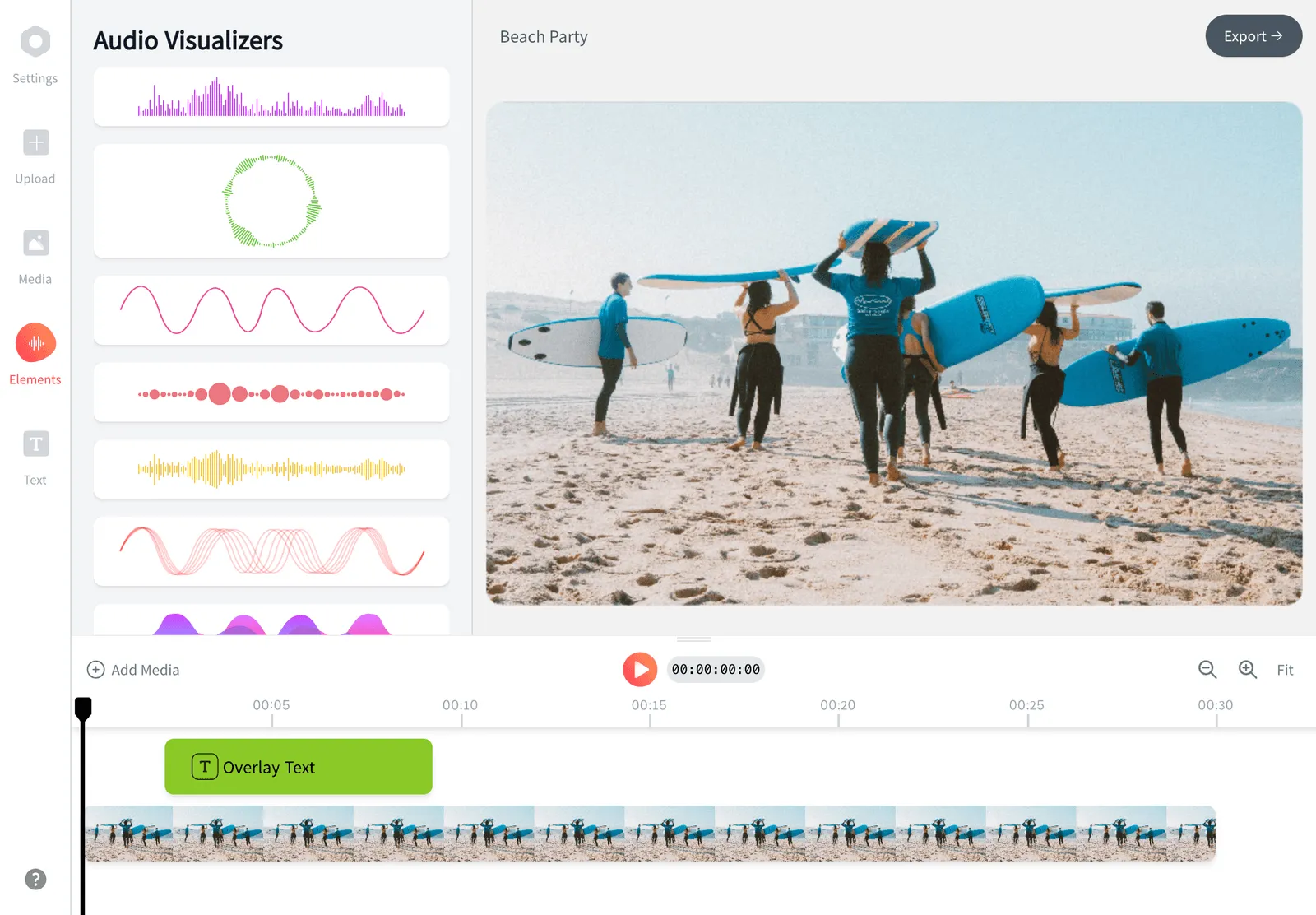
Turn a podcast episode into a shareable video right in your browser. Add your cover art and an animated waveform, pick the right aspect ratio for YouTube or social, then export an MP4.

Podcast to Video Converter Features





A podcast to video converter takes your audio episode (MP3, WAV, M4A and similar files) and wraps it in a video frame so it can be posted where audio files are not allowed. With this free podcast video maker you upload the audio, drop in your cover art as a background, add a moving waveform or captions, choose a 16:9, 1:1 or 9:16 canvas, and export an MP4. To convert podcast to video you do not install anything: everything runs in your browser, and it is free to use.
Why turn a podcast into a video
Audio-only files do not travel well on social platforms. You cannot post an MP3 to YouTube, Instagram, TikTok or a feed on X, and a flat link rarely stops anyone scrolling. Converting the episode to video fixes both problems at once. You get a real upload target on YouTube (now the most-watched podcast platform), a vertical clip for Reels and Shorts, and a moving asset that earns far more attention than a static link.
Video also opens up captions. Adding burned-in subtitles makes a clip watchable with the sound off, which is how most people scroll, and it makes the content accessible to viewers who are deaf or hard of hearing. Spotify, Apple Podcasts and YouTube all support or actively favour video episodes now, so a single MP4 export can feed several distribution channels from one source file. You do not need a separate podcast video editor or a recording rig to start a video podcast: a podcast video maker that turns the existing audio into a video is enough to publish on every platform.
How the podcast to video converter works
EchoWave is a browser-based video editor, so there is nothing to install and nothing to learn from scratch. To convert a podcast to video the flow is straightforward:
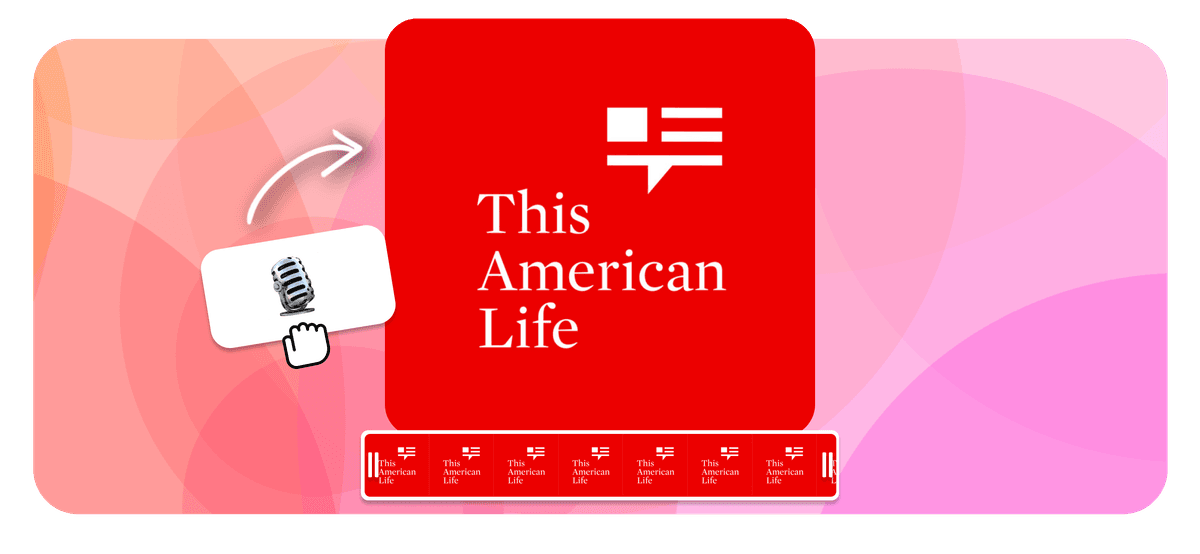
- Upload your audio file. The episode becomes a track on the timeline.
- Add a background. Most podcasters use their episode cover art or show logo so the clip stays on brand. You can also use a solid colour, a looping background video, or a still photo of the guest.
- Add motion. Drop in an animated audio waveform so the video reacts to the sound, then layer on the episode title, guest name or a logo in a corner.
- Set the canvas size to match where the clip is going (16:9, 1:1 or 9:16).
- Render and download the MP4.
Because the audio sits on a normal timeline, you can also trim dead air at the start, cut a 60 second highlight for socials, or split one episode into several short clips before you export.
Supported formats and export specs
On the way in, EchoWave accepts the common podcast audio containers: MP3, WAV, M4A (AAC), OGG, FLAC and AAC. For backgrounds you can bring in JPG and PNG images, or MP4, MOV and WebM video.
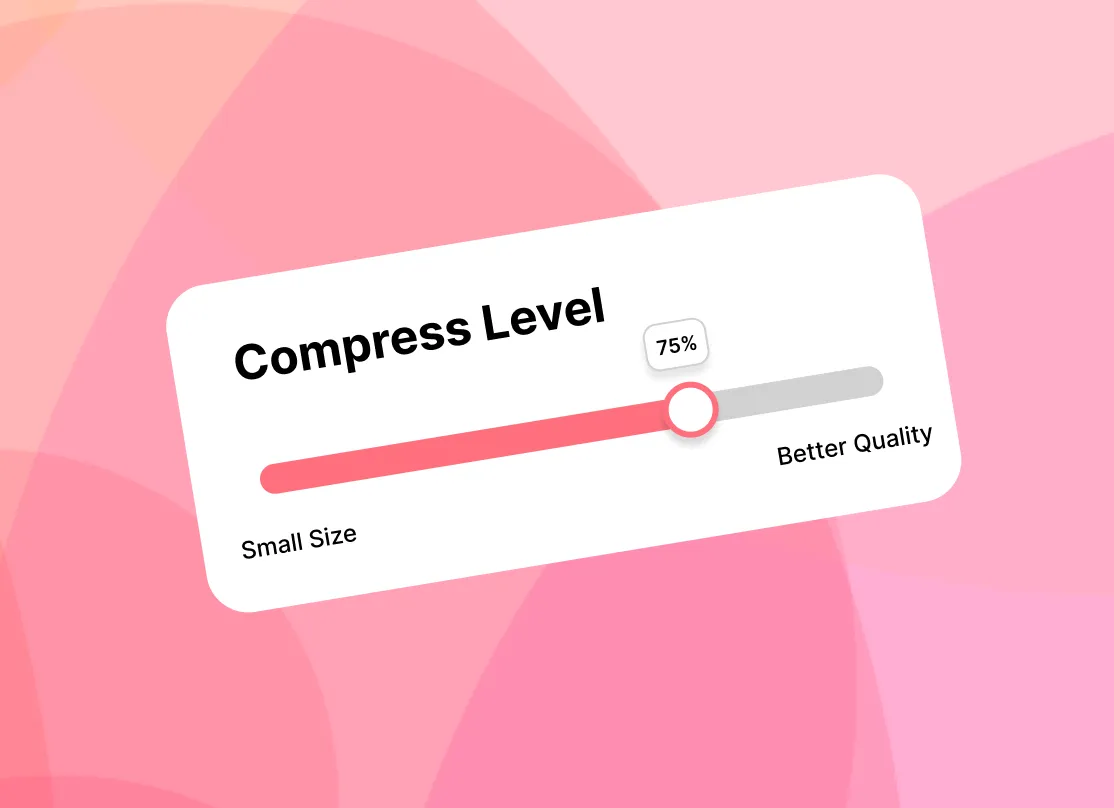
Exports come out as MP4 with H.264 video and AAC audio, the combination YouTube, Spotify, Instagram and every major player accept without re-encoding. You can render at standard resolutions up to 1080p. If your final file is larger than a platform allows, run it through the free video compressor afterwards.
There is no hard rule on episode length, but full hour-long episodes produce large files and take longer to render in the browser. For social posts, most creators export a short highlight rather than the whole episode, and keep the full version for YouTube or Spotify.
Choosing the right aspect ratio
The single most important setting is the canvas shape, because each platform crops and ranks differently:
- 16:9 landscape (1920x1080) for YouTube, Spotify video and a website embed. This is the home for the full episode.
- 1:1 square (1080x1080) for an Instagram or LinkedIn feed post, where square takes up more vertical space than 16:9.
- 9:16 vertical (1080x1920) for YouTube Shorts, Instagram Reels and TikTok. Use this for short, punchy clips, not the whole show.
A common podcast to video workflow is to export the full episode once in 16:9 for YouTube, then cut two or three vertical highlights in 9:16 to drive people back to it.
Platform specific tips
YouTube: upload the 16:9 export as a normal video and add it to a playlist for the show. YouTube treats the playlist as the podcast, and it is the platform most new listeners discover shows on.
Spotify: in Spotify for Creators you can attach a video file to an episode. Spotify accepts MP4, MOV and MPG, so the standard MP4 export works directly.
Instagram and TikTok: keep vertical clips short and lead with the strongest 5 to 10 seconds. Burned-in captions matter most here, since these feeds autoplay muted.
Apple Podcasts: video episodes are delivered through your RSS feed and hosting provider rather than a direct upload, so check what your host supports before producing video for Apple.
Privacy, price and the watermark
The whole podcast to video process happens in your browser, so your audio is processed client-side during the edit rather than sitting on a public server. EchoWave is free to use. On the free plan, exports from the full editor carry a small EchoWave watermark, which you can remove by upgrading to a paid plan. If you only need a quick, watermark-free conversion such as cropping, trimming, compressing or converting a file, EchoWave's dedicated quick tools export without any watermark.
How to convert a podcast to video
Turn an audio episode into a branded MP4 you can post anywhere, using EchoWave's free in-browser editor.
-
1. Upload your podcast audio
Open the editor and upload your MP3, WAV or M4A episode. Social networks reject raw audio files, so wrapping the audio in an MP4 makes it postable.
-
2. Add visuals and pick a size
Use your cover art as the background, add an animated waveform and the episode title, then set the canvas to 16:9, 1:1 or 9:16 for where the clip is going.
-
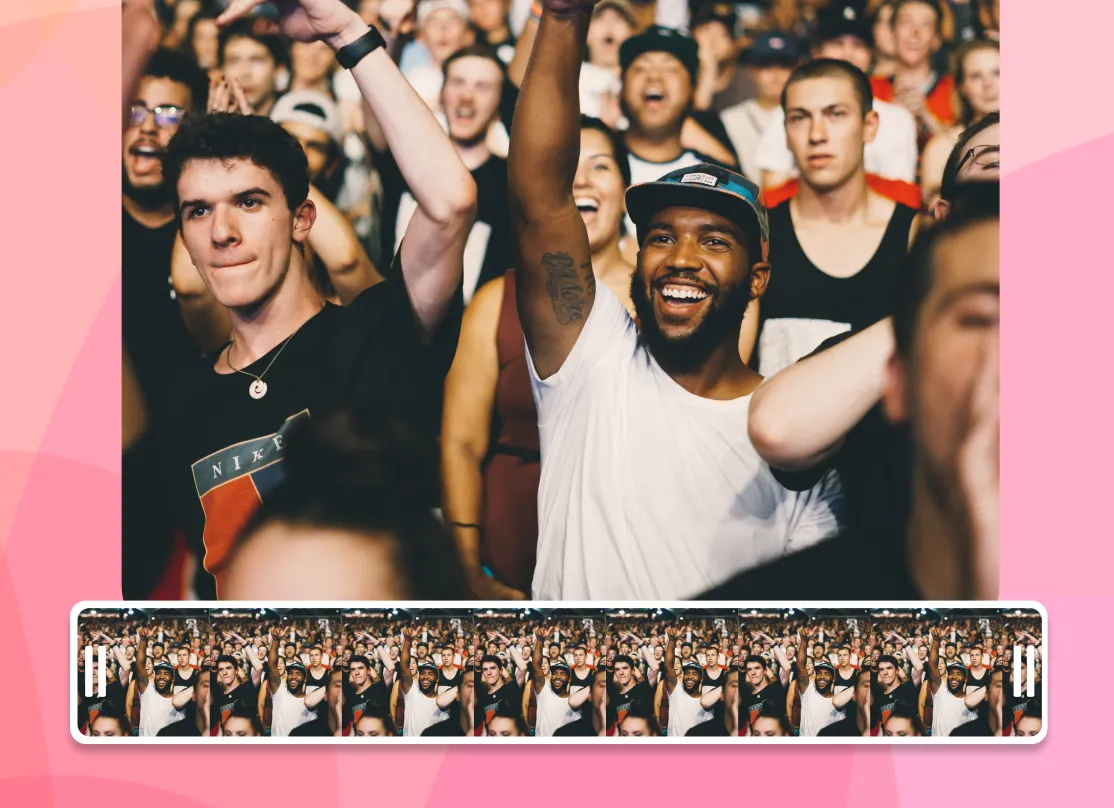
3. Render and download
Export the finished MP4 (H.264 video, AAC audio) and post it to YouTube, Spotify, Instagram or TikTok.
What people are saying about EchoWave
Frequently Asked Questions
How do I turn a podcast into a video?
Upload your audio episode to EchoWave, add a background such as your cover art, drop in an animated waveform or captions, pick an aspect ratio for the platform you are posting to, then render an MP4. The whole process happens in your browser.
Can a podcast be a video?
Yes. A video podcast is the audio episode paired with visuals, which can be as simple as a static cover image and a moving waveform or as involved as a full camera recording of the hosts. Adding video lets you post episodes to YouTube and social feeds that do not accept audio files.
How do I convert a podcast to MP4?
Add the audio to the timeline, add a visual layer (image, video or waveform), then export. EchoWave renders MP4 with H.264 video and AAC audio, the format YouTube, Spotify and social platforms accept.
What audio formats can I upload?
EchoWave accepts common podcast audio files including MP3, WAV, M4A (AAC), OGG, FLAC and AAC. For the background you can also add JPG or PNG images and MP4, MOV or WebM video.
What aspect ratio should I use?
Use 16:9 for YouTube, Spotify and website embeds, 1:1 for Instagram and LinkedIn feed posts, and 9:16 for YouTube Shorts, Reels and TikTok. A full episode usually goes out in 16:9, while short highlights work best vertical.
Is the podcast to video converter free?
Yes, EchoWave is free to use in your browser. Exports from the full editor on the free plan include a small EchoWave watermark, which you can remove on a paid plan.
Does the exported video have a watermark?
Free exports from the full editor carry a small, removable EchoWave watermark; a paid plan removes it. EchoWave's dedicated quick tools, such as crop, trim and compress, export with no watermark.
How do I add my podcast video to Spotify?
In Spotify for Creators, open the episode, choose to upload a video, and select your file. Spotify accepts MP4, MOV and MPG, so the standard MP4 export from EchoWave uploads directly.
Can I add captions or subtitles?
Yes. Captions make a clip watchable with the sound off, which is how most social feeds autoplay. You can add text in the editor, and our subtitles tool covers caption styling in more detail.
Is there a length limit on the audio?
There is no fixed cap, but a full hour-long episode makes a large file and takes longer to render in the browser. For social posts, export a short highlight and keep the full-length version for YouTube or Spotify.
Do I need to install any software?
No. EchoWave runs entirely in the browser, so there is nothing to download or set up. Your audio is processed client-side while you edit, which keeps the workflow private and quick.
Can I make several short clips from one episode?
Yes. Because the audio sits on a normal timeline, you can trim the section you want, change the canvas to 9:16, and export a vertical highlight, then repeat for as many clips as you need from the same episode.
Ready to get started? We have a free plan!
No credit card required, our free plan includes a small Echowave.io watermark.
Get Started →