Spotify Canvas Maker
Turn a short clip into a vertical Canvas for your track. Resize it to 9:16, cut it to the 3 to 8 seconds Spotify asks for, repeat a short moment if it is too brief, then download an MP4 to upload yourself.


Spotify Canvas Maker Features
EchoWave runs in your browser, so a Canvas takes a clip, a few clicks and no install.




Spotify Canvas
A Canvas maker built around the three limits that matter
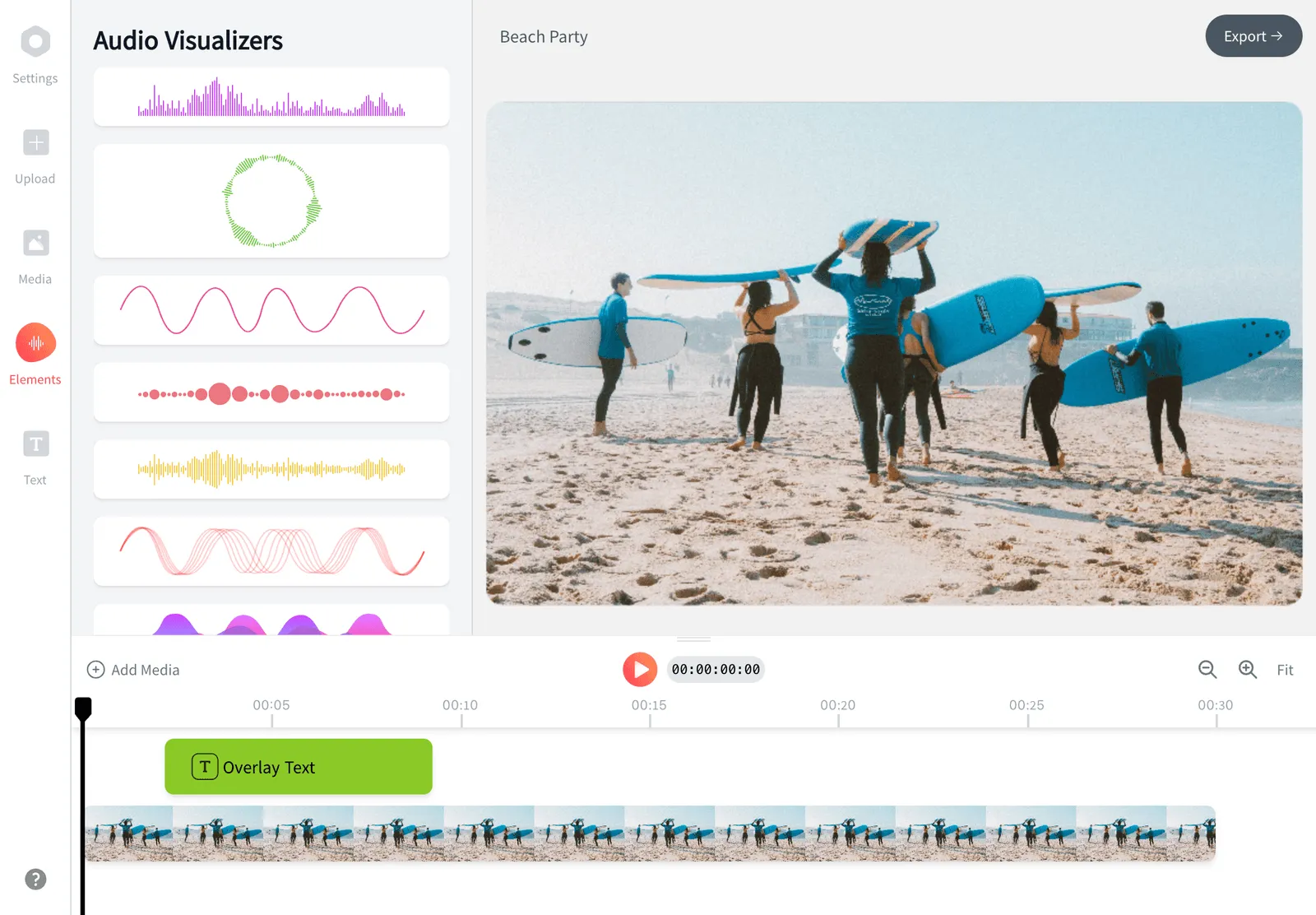
A Spotify Canvas is the short looping visual that plays behind your song in the Spotify app. EchoWave gets a clip into shape with free quick tools: resize it to 9:16, trim it to length and loop a short moment. If you want text, a photo or a visualizer on top, the editor has a Spotify Canvas size preset.
-
9:16
vertical frame Spotify asks for
-
3 to 8 s
length range on Spotify's help page
-
10
times the Loop tool can repeat a clip
-
MP4
file you download and upload yourself
What you get
Everything between your clip and the upload
Each piece is a free quick tool, with the editor there when you want more.
-
Resize to 9:16
The Resize tool has a Reels / Shorts preset at 9:16. Fill crops the sides, Blur keeps the whole frame over a blurred copy, Fit leaves plain bars.
-
Trim to length
Set the start and end by hand and keep the three to eight seconds that look best, ideally a stretch that loops gently.
-
Loop a short moment
Got a two second clip? The Loop tool repeats it up to 10 times and shows the new length before you render.
-
Spotify Canvas preset
The editor's canvas size menu lists Spotify Canvas at 1080 by 1920 beside TikTok and Shorts, for layering text or a visualizer over the clip.
-
Album art in motion
Add a cover image in the editor and give it a motion preset such as a slow zoom, so a still becomes a moving Canvas.
-
No badge from quick tools
Resize, Trim and Loop need no sign-up and add no EchoWave badge or end card to the file you download.
How it works
How to make a Spotify Canvas
Four steps, no account needed for the quick tools.
-
Resize to 9:16
Open Resize video, drop in your clip, pick Reels / Shorts and a fill (Fill, Blur or Fit), press Resize video and download the file.
-
Cut to 3 to 8 seconds
Open the Trim tool with the resized file, mark the start and end of the stretch you want and render it.
-
Repeat if it is short
Under three seconds? Run the file through Loop and choose how many times it plays. Start and result lengths are shown.
-
Download and upload
Save the MP4, then add it as the Canvas for your track in Spotify for Artists. EchoWave cannot upload to Spotify for you.
Before you export
What makes a Canvas work
-
Slow, simple motion
Spotify advises against rapid cuts and intense flashing. A steady drifting shot loops better than a busy one.
-
No one singing
Spotify suggests footage without talking, singing or rapping, since the vocal already plays from your track.
-
Leave the title off
The app already shows song and artist name, so Spotify suggests leaving them out of the picture.
-
Keep the middle clear
Edges can be cropped on some phones. Put the subject in the centre, away from the border.
-
Match end to start
A loop feels smooth when the last frame resembles the first. Pick steady light and repeating motion.
-
Check the limits
Read Spotify's current Canvas page before you export, because platform rules change.
Get your clip ready for Spotify
Resize to 9:16, trim to length, loop if needed and download an MP4 for your track.
What creators say after trying EchoWave
How to upload a Canvas in Spotify for Artists
Once the MP4 is downloaded, the upload happens in Spotify for Artists, not in EchoWave. Spotify's help describes two routes:
- On the web: log in to artists.spotify.com, go to Music, select your track and click Add Canvas.
- In the Spotify for Artists app: tap Music, select the track and tap Canvas.
Your role on the artist's team has to be Admin or Editor, and you can add a Canvas to an upcoming release before it is out. It then replaces the album art in the Now Playing view of the Spotify mobile app. These are the menu names Spotify's help used in November 2026; check there if a button has moved.

About the EchoWave team
EchoWave is a browser-based video and audio editor built by Lemon Vault LLC since 2018. The people who build the editor write these guides and test every step in the production app before publishing.
Spotify Canvas Maker FAQ
How do I make a Spotify Canvas?
Resize a clip to 9:16, trim it to between 3 and 8 seconds, and loop it if it is shorter. Download the MP4 and upload it to your track in Spotify for Artists. The quick tools are free and need no sign-up. For text or a photo on top, use the editor with its Spotify Canvas size preset.
What size and length does a Spotify Canvas need?
Spotify's help page asks for a vertical 9:16 video of 3 to 8 seconds, between 720 and 1080 pixels, as an MP4 or JPG file. Check it before you export, because it can change. EchoWave's preset is 1080 by 1920, and the quick tools show the output size before you render.
Can I use a free editor export for a Canvas?
Probably not as it comes. A free editor export is a 720p MP4 with a small EchoWave badge and a short end card added at the end, so the file is longer and has a badge in the picture. A paid plan removes both. The free quick tools add neither.
Does EchoWave upload to Spotify?
No. EchoWave makes the file and you upload it in Spotify for Artists. The app has no direct publishing and no link to your Spotify account. It is independent and not affiliated with or endorsed by Spotify.
Will my loop be smooth?
Not automatically. EchoWave repeats your clip as it is and does not blend the last frame into the first. Choose footage whose end resembles its start, and preview it on repeat before you upload.
What about audio in the clip?
Spotify's help page gives no audio rules for a Canvas, and your song plays under it, so the clip needs no sound of its own. To strip existing audio, run the file through the Mute tool.
Make your Canvas in a few clicks
Resize, trim and loop in the browser, then upload the MP4 to Spotify for Artists yourself.
Get Started →