AVI Video Editor
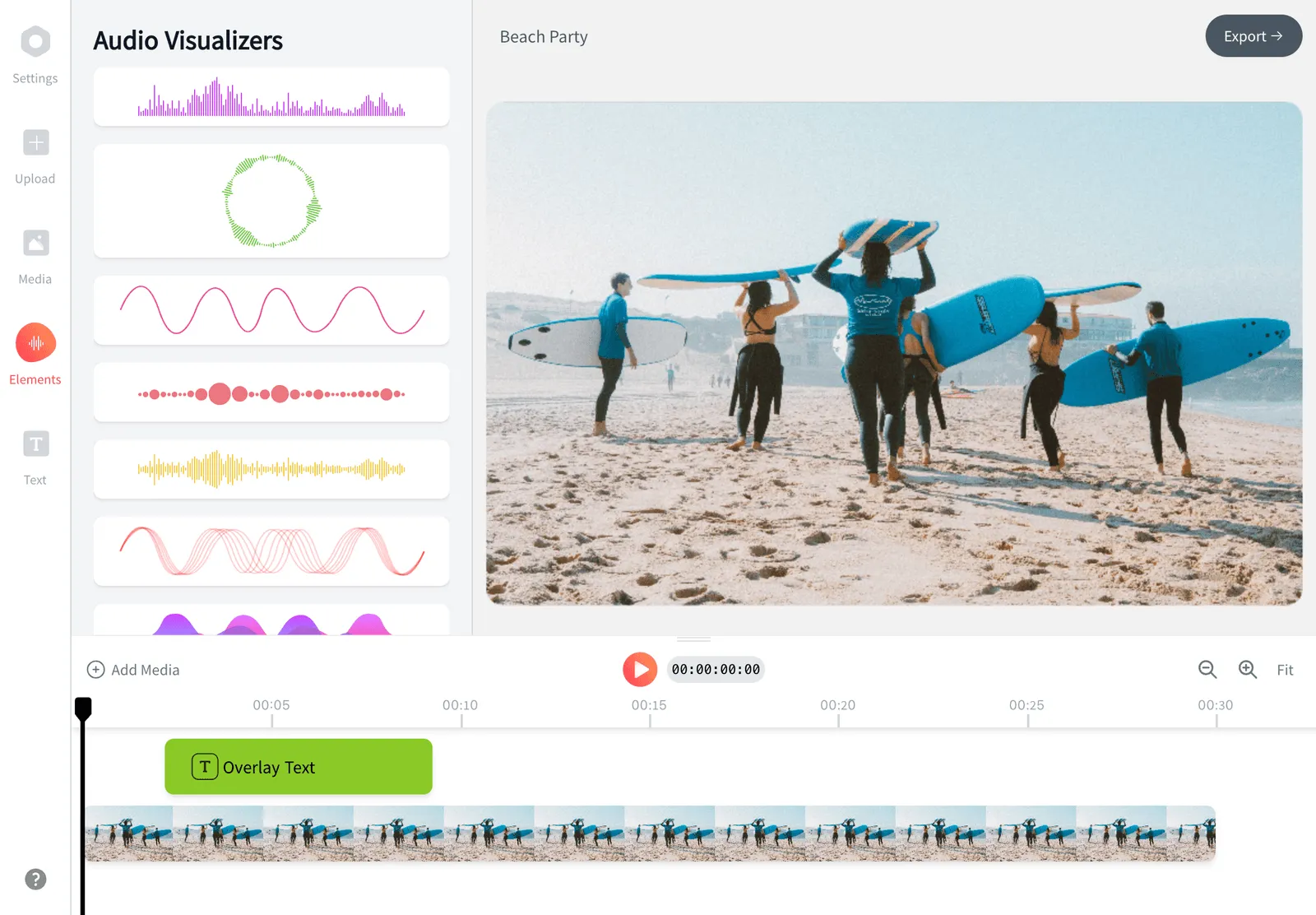
Add an AVI file to the editor, trim it, add captions and text, and export an MP4. Browsers cannot play most AVI files, so EchoWave converts yours first and shows its progress.


AVI Video Editor Features
EchoWave is a browser editor: add the AVI, let it be converted, then edit as with any clip.





AVI editing
Edit an AVI file without installing software
AVI is an old container from the era of camcorders, DivX and early screen capture, and browsers do not play it. So the editor does the conversion for you: the original is uploaded once, converted to an MP4 on EchoWave servers, and added to your project. To rotate an AVI without editing it, see rotate AVI. For a plain conversion, use AVI to MP4.
-
AVI
accepted in the editor
-
MP4
what the converted copy is
-
720p
free export size
-
60 min
longest free export
What you get
What happens to your AVI
From the way the editor imports it.
-
Uploaded once
The original AVI is uploaded one time as a temporary file for conversion. You do not run a converter or download anything yourself.
-
Converted to MP4
EchoWave converts it to an MP4 with H.264 video and AAC audio, then brings the result back and adds it to your timeline.
-
Progress you can see
The Getting files ready panel shows Uploading for conversion, Waiting for a free converter, Converting on EchoWave servers and Bringing the converted file back.
-
Then a normal editor
After that it is a normal clip: trim and split it, add titles, music, transitions and captions, and layer more tracks on the timeline.
-
One picture, one sound
The converted file is a normal clip with one video and one audio track. Older AVIs rarely carry more than that.
-
Export as MP4
On the free plan you get an MP4 up to 720p, marked with a small badge and an end card. Paid plans export at 1080p without either.
How it works
How to edit an AVI file online
Four steps; the second one takes the longest.
-
Add the AVI
Start a new project and add the AVI through the Media panel, or drop it onto the editor on a computer.
-
Wait for the conversion
Watch the Getting files ready panel until it says Ready, adding to your project. You can keep working on other things while it runs.
-
Edit
Trim and arrange on the timeline, then add text, music or captions.
-
Export
Open Export, pick a size and save the MP4.
Before you start
What to expect with an AVI
-
Allow time
Conversion depends on the length and size of the file and on how busy the converters are. Long clips take longer than short ones.
-
One at a time
Conversions run one after another. If you add several AVIs, they queue, and your own export may delay a conversion.
-
Keep the original
Your AVI is not changed. The editor edits a converted copy and exports a new file.
-
Old footage, old quality
Conversion cannot add detail. A small 480p capture stays small, so choose an export size to match.
-
Captions help
Old recordings are often quiet or unclear. Generate captions from the speech in Subtitles, and edit the words.
-
Not every AVI converts
If the conversion fails, the panel says so. Try again, or convert with another tool and add the MP4.
Edit your AVI now
Add the file, let it be converted and export an MP4 from your browser.
How creators use EchoWave in real projects

About the EchoWave team
EchoWave is a browser-based video and audio editor built by Lemon Vault LLC since 2018. The people who build the editor write these guides and test every step in the production app before publishing.
AVI Video Editor FAQ
Can I edit an AVI file online?
Yes. Add the AVI to the editor and EchoWave converts it for you. The original is uploaded once, converted to MP4 on EchoWave servers, and added to your project. Then you trim, add text and captions as with any clip, and export an MP4.
Why does my AVI need converting?
Browsers do not play most AVI files, because the codecs inside, such as DivX or Xvid, are not supported. A converted MP4 plays everywhere, so the editor makes one first. That is why the file takes a moment before it shows on the timeline.
How long does the conversion take?
It depends on the file's length and size and on how busy the converters are, so there is no fixed number. The panel shows each stage: uploading, waiting for a converter, converting and bringing the file back. For a long file, plan to wait.
Is there a file size limit for AVI?
EchoWave does not state a maximum size or length for imports. Larger files take longer to upload and convert, so use a steady connection. A free export stops at the 60 minute mark of the project.
What happens to audio and subtitles?
The converted clip has one video track and one audio track. AVI files do not normally carry subtitle tracks. Generate captions from the speech in the Subtitles panel, or import an .srt or .vtt file.
Can I export an AVI?
No. Export is MP4 on every plan, and WebM, MOV, MKV and GIF on paid plans. MP4 is the format that plays on phones, computers and the web. Free exports carry a small badge and an end card.
Edit your AVI in the browser
Add the file, let it be converted, edit and export an MP4.
Get Started →