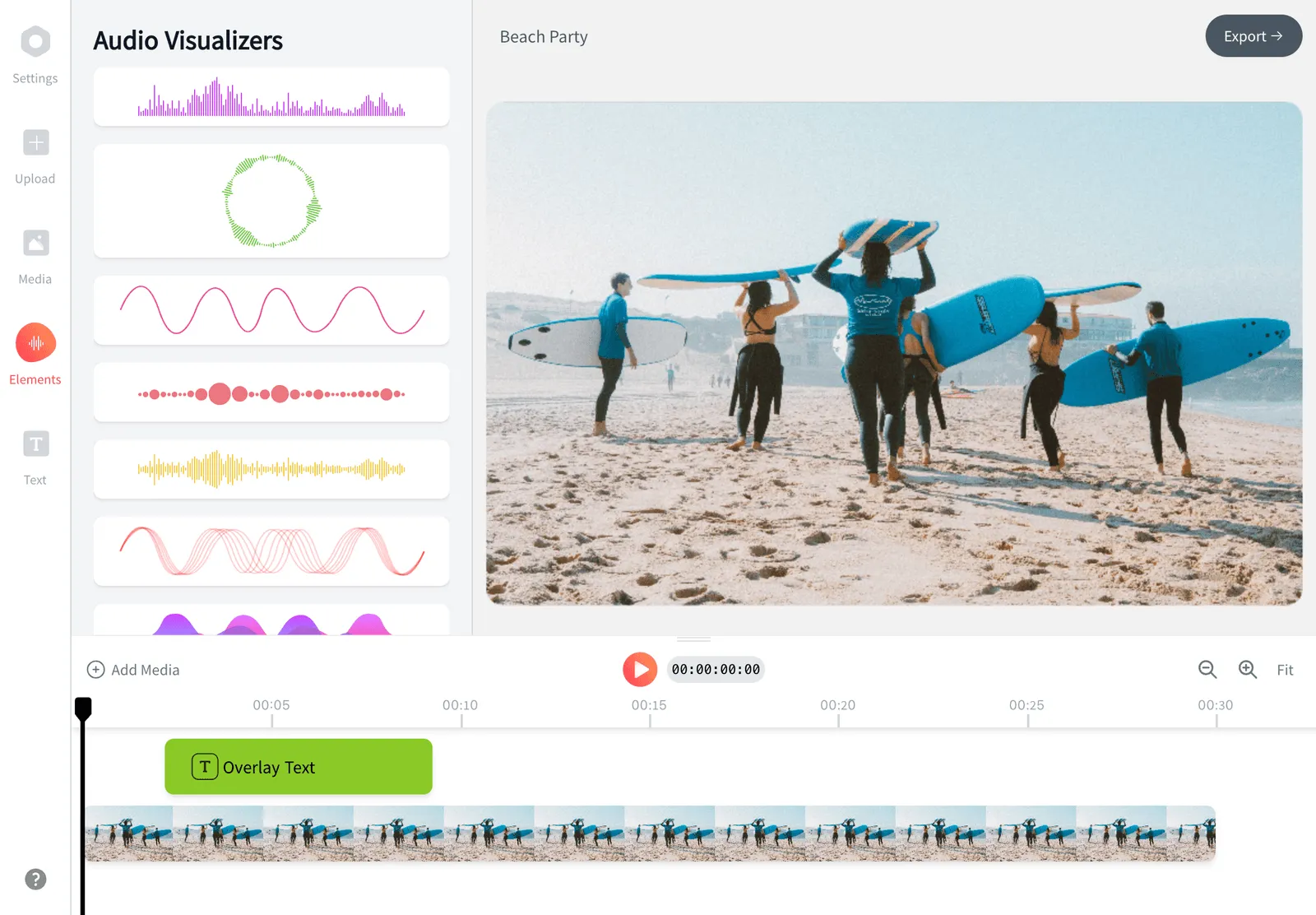
MKV Video Editor
Open an MKV file straight in the editor, trim it, add captions and text, and export an MP4. EchoWave prepares the file when you add it, so you do not run a converter first.


MKV Video Editor Features
EchoWave is a browser editor: add the MKV, wait for it to be prepared, then edit.





MKV editing
Edit an MKV without converting it yourself
MKV is a container used by screen recorders, downloads and camera apps, and many editors in a browser refuse it. EchoWave accepts it. When you add the file, it is repackaged as MP4 for the project, and you edit that. If all you need is a plain conversion, use the MKV to MP4 converter. To cut without a full edit, see cut MKV.
-
MKV
opens directly in the editor
-
MP4
what you export on the free plan
-
720p
free export size
-
1
picture and 1 sound track used per file
What you get
How MKV files are handled
Based on how the editor imports files.
-
Repackaged when possible
If the video is H.264, HEVC, VP9 or AV1 that your browser can play, it is repackaged as MP4 without re-encoding. AAC audio is kept as it is.
-
Converted when needed
Other codecs are re-encoded in your browser if the file is modest in size. The rest are uploaded once and converted on EchoWave servers, with progress shown.
-
One picture, one sound
The editor treats a file as one video track and one audio track. Extra audio languages and angles inside the MKV are not offered as separate tracks.
-
Captions of your own
Embedded subtitle tracks are not imported. Generate captions automatically in Subtitles, or import your own .srt or .vtt file.
-
The full editor
Trim, split, add text, music, transitions and captions with 176 style presets on a multi-track timeline.
-
Export as MP4
Free exports come out as MP4 at up to 720p with a badge and end card. MKV as an output format needs the Pro plan.
How it works
How to edit an MKV file online
Four steps.
-
Add the MKV
Open the editor and add your file from the Media panel or the first card. On a computer you can drag it in.
-
Wait for it to be prepared
A Getting files ready panel shows progress: Converting video to MP4, or Uploading for conversion, then Ready, adding to your project.
-
Edit
Trim and arrange on the timeline, then add text and captions. Check the audio plays the language you expect.
-
Export
Press Export, choose the quality and download your MP4.
Before you start
Getting an MKV ready for editing
-
Check the audio track
If the file has several languages, confirm the one you hear is the one you want. Remux the file with that track first if not.
-
Expect a wait for odd codecs
A plain H.264 MKV is quick. Files that need conversion take longer, and the panel shows each stage.
-
Bring your own subtitles
Embedded subtitles do not come across. Import an .srt or .vtt, or generate captions from the speech.
-
Keep the original
The source file is not changed. The editor works on a prepared copy and exports a new file.
-
Not every file will convert
If a file cannot be prepared, the editor may add it as it is and warn that it might not preview, or say it could not convert it.
-
Long recordings
Free exports cover the first 60 minutes of a project, so split very long recordings into parts.
Edit your MKV now
Add the file, let it be prepared and export an MP4 from your browser.
What people are saying about EchoWave

About the EchoWave team
EchoWave is a browser-based video and audio editor built by Lemon Vault LLC since 2018. The people who build the editor write these guides and test every step in the production app before publishing.
MKV Video Editor FAQ
Can I edit an MKV file online without converting it first?
Yes. Add the MKV to the editor and EchoWave prepares it for you. Most files with H.264 video are simply repackaged as MP4. Others are converted, in your browser or on EchoWave servers, and the panel shows which stage the file is at. You then edit as normal and export an MP4.
What happens to extra audio tracks and subtitles?
The editor uses one video track and one audio track per file. Additional audio languages are not offered as separate tracks, and embedded subtitles are not imported as captions. Generate new captions in the Subtitles panel, or import an .srt or .vtt file of your own.
Is there a file size limit for MKV?
EchoWave does not state a maximum file size or length for imports. Small, simple files are prepared in your browser. Larger or less common files are uploaded and converted on EchoWave servers, which takes longer. Free exports cover the first 60 minutes.
Does it change the quality of my MKV?
When the video can be repackaged, nothing is re-encoded, so the picture is untouched until you export. Files that need conversion are re-encoded once. The final export is a new encode, as with any editor, at the quality you choose.
Can I export an MKV?
MKV export is a Pro feature. Free exports are MP4 up to 720p with a small badge and end card, and paid plans remove both. For most uses an MP4 is the format that plays everywhere.
What if my MKV will not open?
Some files, for example with unusual codecs, cannot be prepared. The editor may add the file as it is with a note that it might not preview in your browser, or tell you it could not convert it and suggest exporting it as MP4 first. Our MKV to MP4 converter is another route.
Edit your MKV in the browser
Add the file, let it be prepared, edit and export an MP4.
Get Started →